Monthly prompt budget
Each AI action spends prompts from your plan’s monthly pool. When you hit the limit, new AI runs are blocked until the next period (limits may vary by plan or campaign).
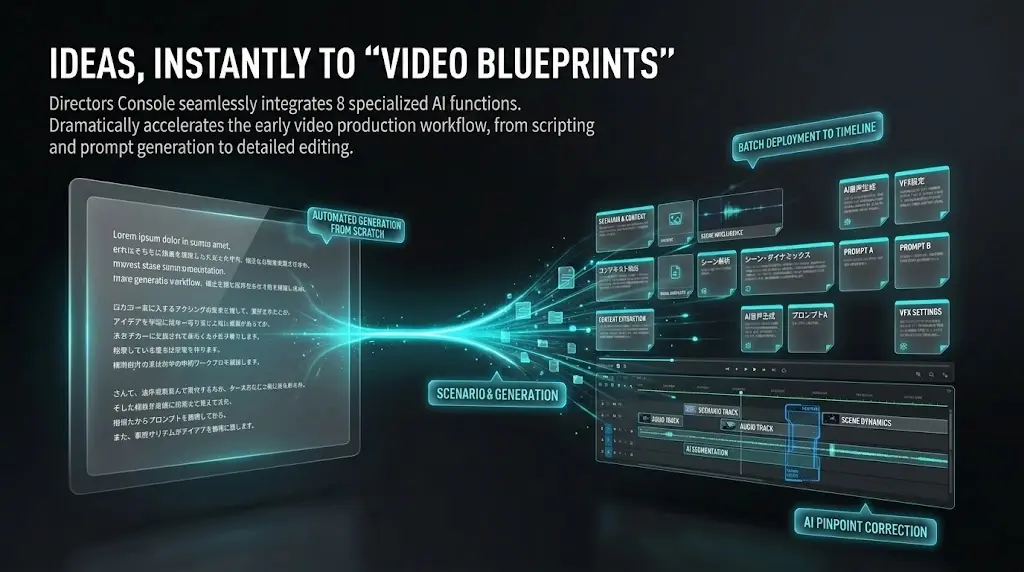
From script creation and continuations to cut generation and refinement — AI accelerates your workflow.
The story was created in script mode with main genre Romance and sub-genre Suspense.
Video generation was done inside Veo’s Flow.
Workflow: bulk-generate cuts for one scene → generate video for the first cut → review (use cut AI refine if needed) → when it’s approved, move to the next cut → bulk-generate cuts for the next scene together → repeat.
We recommend generating video cut by cut, fixing prompts with cut (prompt) refinement when needed, and moving on once each cut is approved.
[Prom Night] Episode 1
[Prom Night] Episode 2
Main genres: Gang & Suspense × Sub-genre: Hard-boiled.
Main genre: Human drama × Sub-genres: Romance melodrama, romance melodrama, twist of fate.
Made with a script generated in script mode by entering: “Please create a script for Genesis chapters 1–2 of the Old Testament (from the creation of heaven and earth through the birth of Adam).” (other genres and keywords left at default). Because narration is supported, educational and explainer videos can be produced as well.
Genesis from the Old Testament (1)
Genesis from the Old Testament (2)
Genesis from the Old Testament (3)
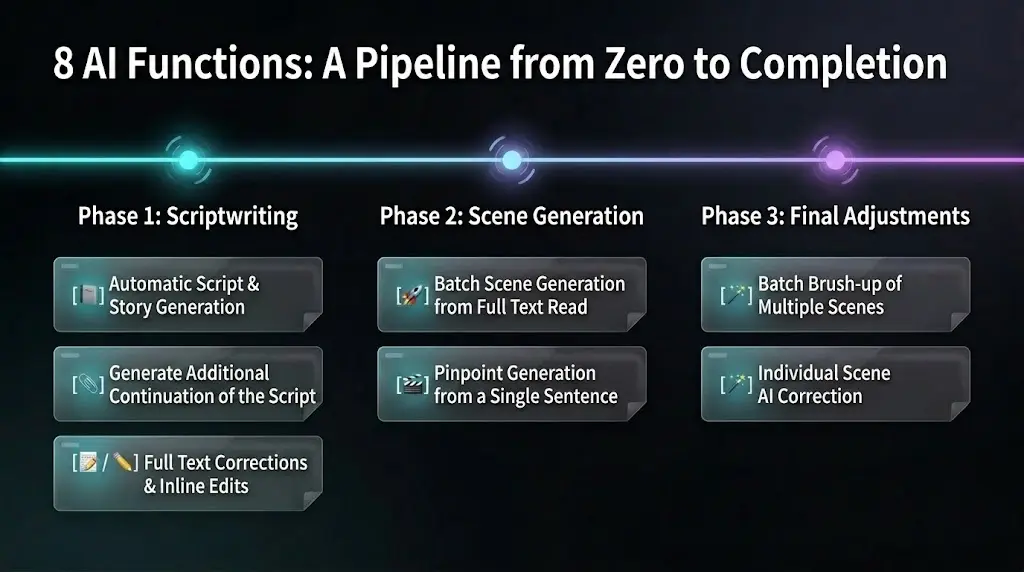
Generate scripts from scratch by selecting conditions
Rewrite the entire script with instructions and quick chips; preview before applying
Select text and instruct AI to rewrite just that range (inline)
Auto-generate all cuts from the entire script at once
Generate a single cut from a specific part of the script
Brush up many timeline cuts at once from one instruction
Improve one selected sticky with AI suggestions
Append the next act or a section-2–style continuation after your existing script
Recommended Workflow
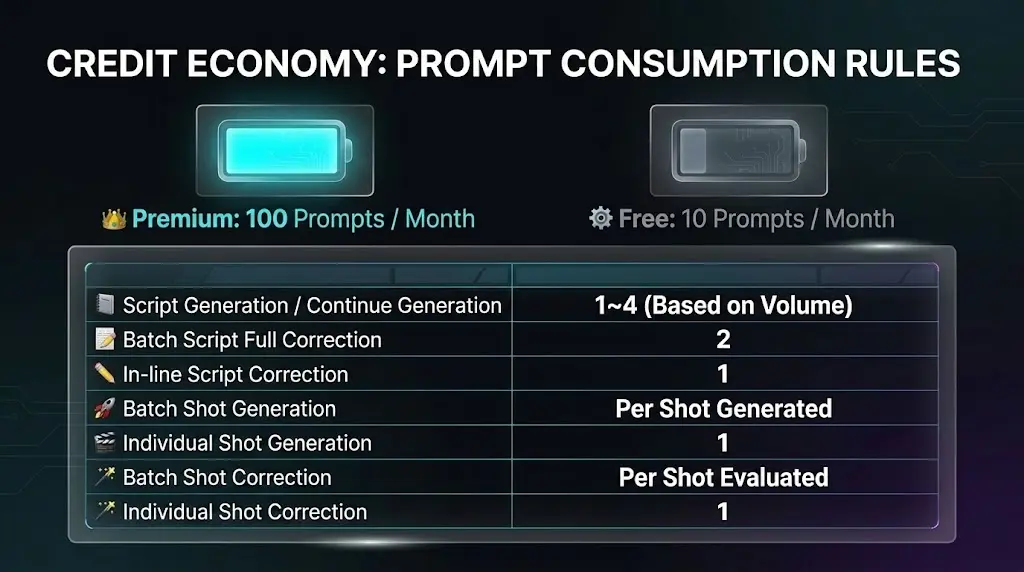
Most editor AI actions count prompts per run. Check your remaining balance before running; use the cards below as a quick reference.
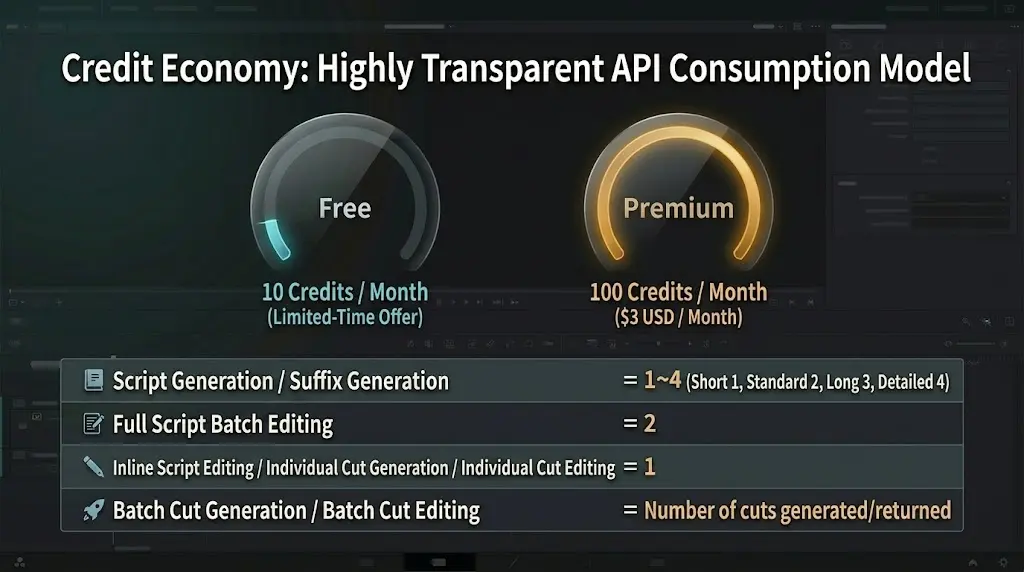
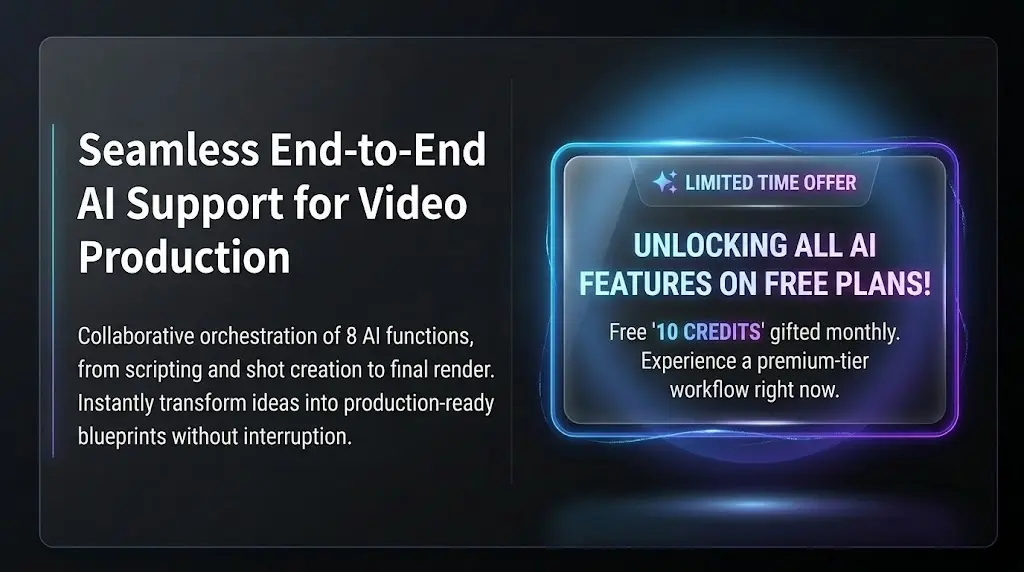
For a limited time, the free plan includes 10 credits per month — try the AI features while this offer lasts.
(Premium plan: $3/month, 100 credits per month)
Each AI action spends prompts from your plan’s monthly pool. When you hit the limit, new AI runs are blocked until the next period (limits may vary by plan or campaign).
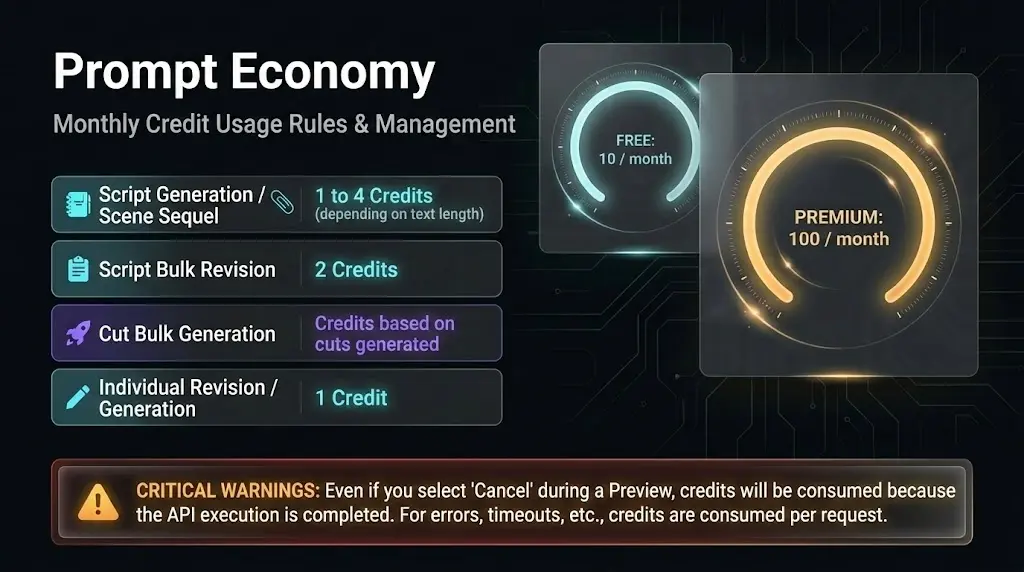
New script and Continue script: 1–4 prompts by the volume you pick in the modal (Short 1 through Extensive 4).
Full-script bulk rewrite: 2 prompts per run. Inline edit for a selected range: 1 prompt.
Bulk cut generation from the script: one prompt per cut generated. Single cut from one script line: 1 prompt.
Single-cut AI refine uses 1 prompt per run. Bulk cut refine charges by how many cuts the API returns (minimum 1 per successful run even if zero cuts are returned).
Movie editor Focus mode is layout-only — no prompts used. For full-script rewrite and cut AI refine, Cancel on the preview still leaves credits consumed because the API already ran.
Please note
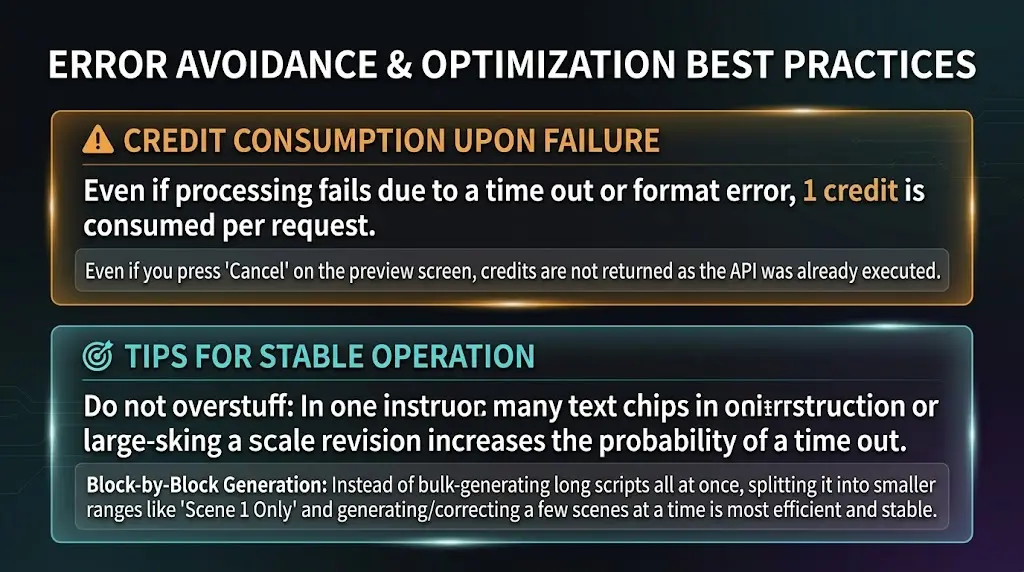
Timeouts and invalid responses still consume 1 prompt credit per request.
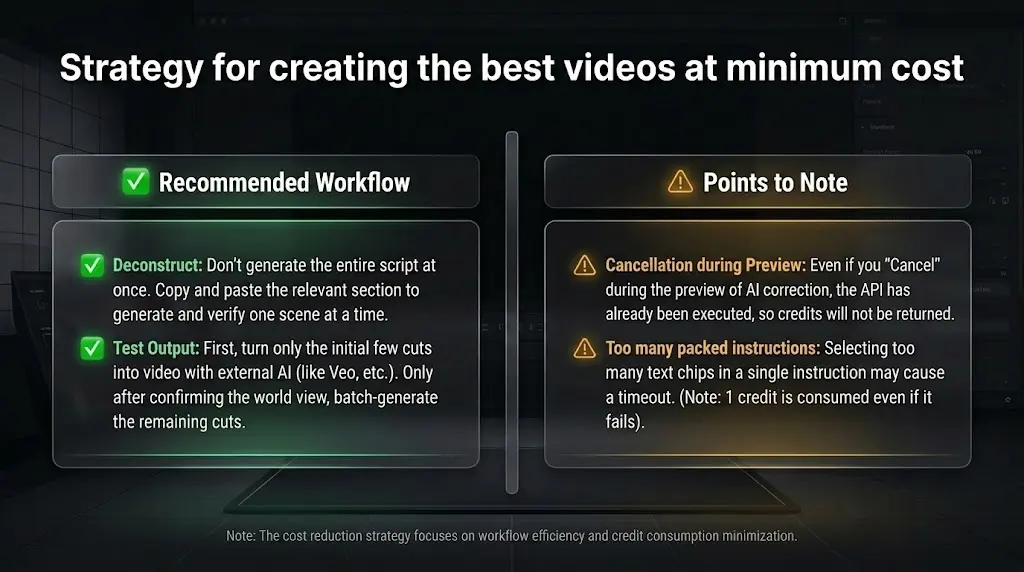
Overloading one instruction (e.g. selecting many text chips at once) increases timeout risk—keep scope and goals separate across multiple runs for more stable results.
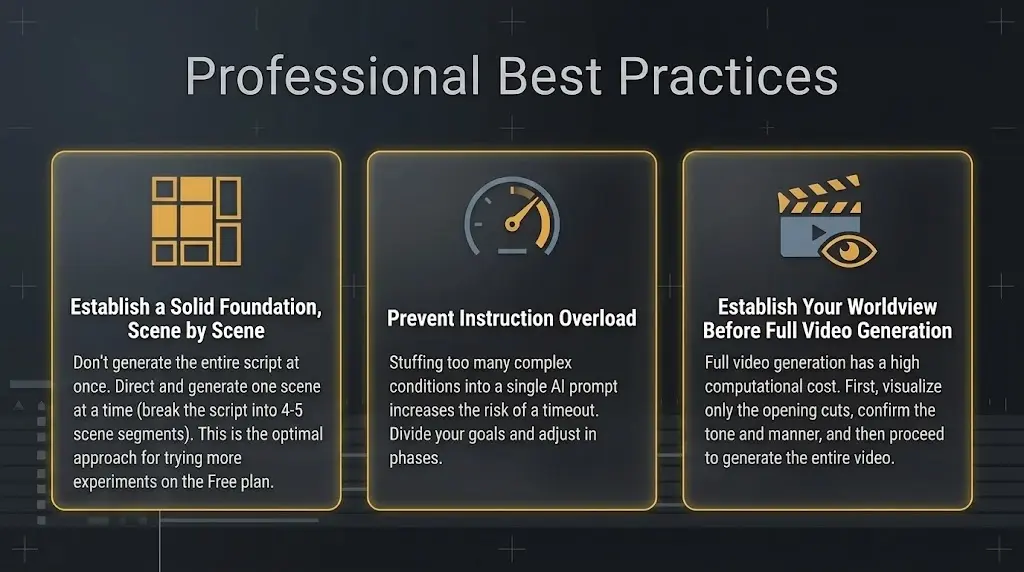
You can generate a full script in one run, but it often works better to generate scene by scene with a tight prompt for each. Full-script generation commonly splits into about four or five scenes.
You can also copy the passage you need, point the AI at that slice, and build one scene at a time. On the free plan (limited time: 10 credits/month), that workflow stretches your credits further.
Exact numbers follow the app implementation (credit constants and APIs). See the consumption table on the AI features page for the full breakdown.
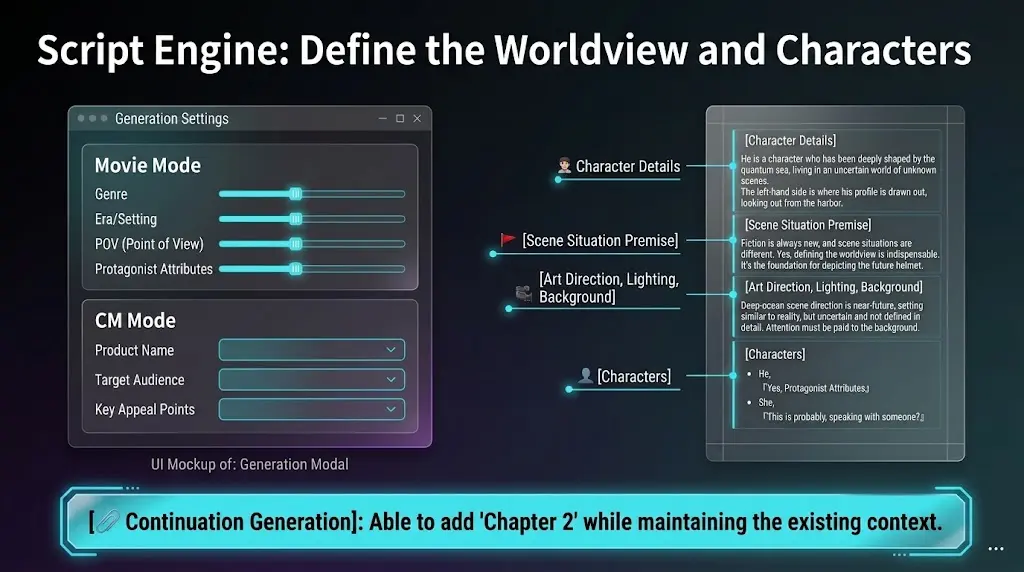
Generate scripts from scratch. Pick main and sub-genres, era, keywords, character attributes, and more—AI delivers story, cast, scene premise, art direction, and extras together in one package. With billions of possible combinations, you get an original story that’s uniquely yours.
Adapt a source into your own film script—original visualization, not a copy of an existing movie.
Movie editor → Script generation → Movie / Drama tab → describe your vision in “What kind of film do you want?” For a known source (Romeo and Juliet, etc.), check Adapt / visualize from a source work below that field, then generate.
A film “remake” rebuilds an existing movie. Classics on screen are closer to adaptation or visualization—and that’s how this feature works.
New script honoring source plot, beats, and relationships
Copying existing film/TV screenplays
Colloquial, modern film-style Japanese dialogue
Textbook tone, stage phrasing, famous lines verbatim
Stage directions rewritten for your film
Verbatim published translations or source English
Write simply in “What kind of film do you want?”
Refine with genre, era, keywords—or leave “Let AI decide.” For a source work, enable the adaptation checkbox.
Generate → stickies → cut prompts → video. Extend with continuation or the “Add English dialogue” chip.
Colloquial film-script tone—natural modern Japanese; English lines stay everyday film dialogue, not literary prose.
Pick the story with visualization; dial intensity with the Forbidden Switch (Premium). Your era and genre stay yours.
Learn more →You are responsible for rights and publication. Public-domain status varies. Do not use modern protected works without permission.
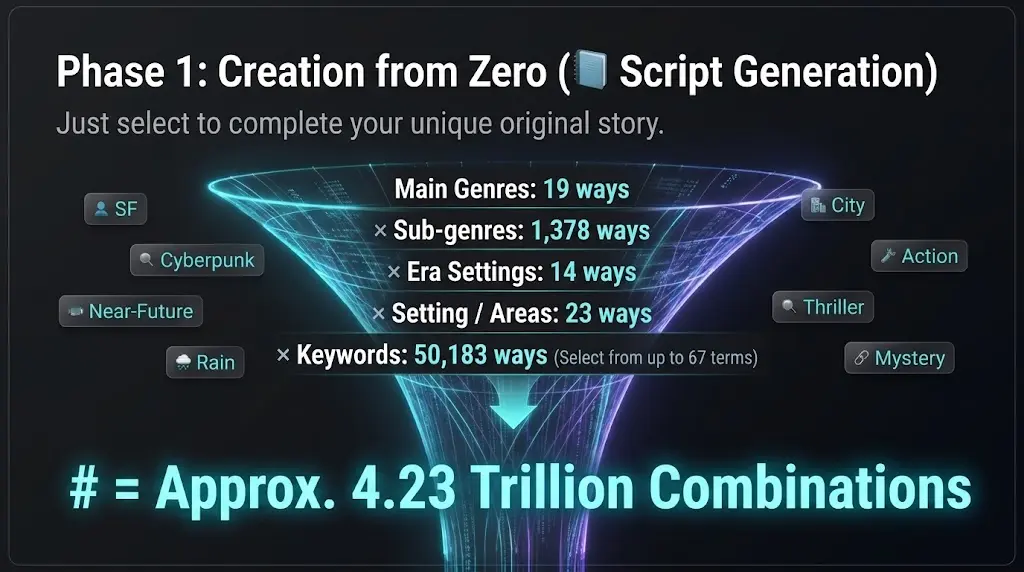
Rough stack-up of options in the generator: one main genre, two sub-genres, era, setting/area, and keywords. Up to 67 keyword chips can be combined; the total swings widely depending on how many you pick.
| Factor | Ways |
|---|---|
| Main genre (incl. “Other”) | 19 |
| Two sub-genres from 53 chips (Romance 24 + Gang 16 + Comedy 13) | 1,378 |
| Era (fixed list, excl. free-text “Other”) | 14 |
| Setting / area | 23 |
| Ways to pick 1–3 keywords (sum of combos from 67) | ≈ 50,183 |
Multiply all rows: on the order of 4.23×10¹¹ combinations — hundreds of billions.
19 × 1,378 × 14 × 23 × 50,183
| Keywords | Total (approx.) |
|---|---|
| Exactly 1 | ~560 million |
| 1 or 2 | ~19.2 billion |
| 1 to 3 | ~400+ billion |
| Unrestricted (over 2⁶⁷ in theory) | Astronomical (10²⁰+ scale) |
You always have hundreds of millions of paths at minimum; with a few keywords, totals reach hundreds of billions. Figures are illustrative from current UI counts and may change with product updates.
Click the button at the top of the script area to open the generation modal.
In the modal, select genre, era, setting, keywords, perspective, protagonist attributes, story development, tempo, and volume (character count / cut-count guidance). You can pick multiple genres and mark one as Main if you like. Use the free text field for extra notes.
AI writes the script from your settings in a few seconds. Credits charged: 1–4 depending on volume (Short 1, Standard 2, Long 3, Extensive 4).
The script body and character details are automatically inserted into the text area. You can use them as-is or edit manually.
Seven mythic story laws—dial up drama without changing your world. A Premium / Studio feature.
Why do myths and timeless stories still grip us? They lay bare our deepest weaknesses, desires, and longing for redemption. Hollywood craft—the hero’s journey and beyond—systematizes these same structures.
The Forbidden Switch injects seven dramatic laws from timeless stories directly into script generation. Flip a switch and your story gains mythic momentum. The panel appears at the bottom of the script generation modal (Movie tab).
Seven engines that drive great stories—use one or layer several to dial intensity to your material.
The Forbidden Line
A line that must never be crossed—broken early. The point of no return grips the audience instantly.
The Flawed Protagonist
No one roots for the flawless. A fatal weakness, twin to their strength, is what makes us care.
The Underdog Reversal
An unbeatable wall, toppled by wit and conviction. The catharsis that has thrilled audiences for millennia.
Fall and Redemption
From rock bottom, through hardship, to true purpose. The timeless arc of human growth.
The Intimate Conflict
The greatest enemy isn’t an outsider but family or a best friend. Betrayal by a loved one cuts deepest.
The Impossible Choice
What you love most vs. a mission you can’t abandon. A no-win choice exposes who they truly are.
The Lasting Scar
No cheap happy ending. A scar that never fades—and the hard-won calm beside it—leaves a haunting resonance.
① Choose yourself
Tick laws individually—e.g. underdog reversal plus an impossible choice—for precise dramatic control.
② 🤖 Let AI choose
AI analyzes your inputs and auto-selects 2–4 effective laws, avoiding contradictions so the story stays coherent.
“Mythic laws” might sound like they’d drag your story into a religious setting—they won’t. No scripture names or motifs are injected.
Your era, setting, genre, and world come first. Laws act only as structure—modern sci-fi, office drama, feudal romance; the stage stays yours.
Like a script doctor on staff—for scripts that feel flat or “almost there.” Same credits as a normal generation. Try one script with the switch on and feel the difference.
Set genre, perspective, protagonist, and story development to generate scripts for movies or short films.
In development. (Beta)
Set product name, category, visual style, and target audience to generate scripts for commercials.
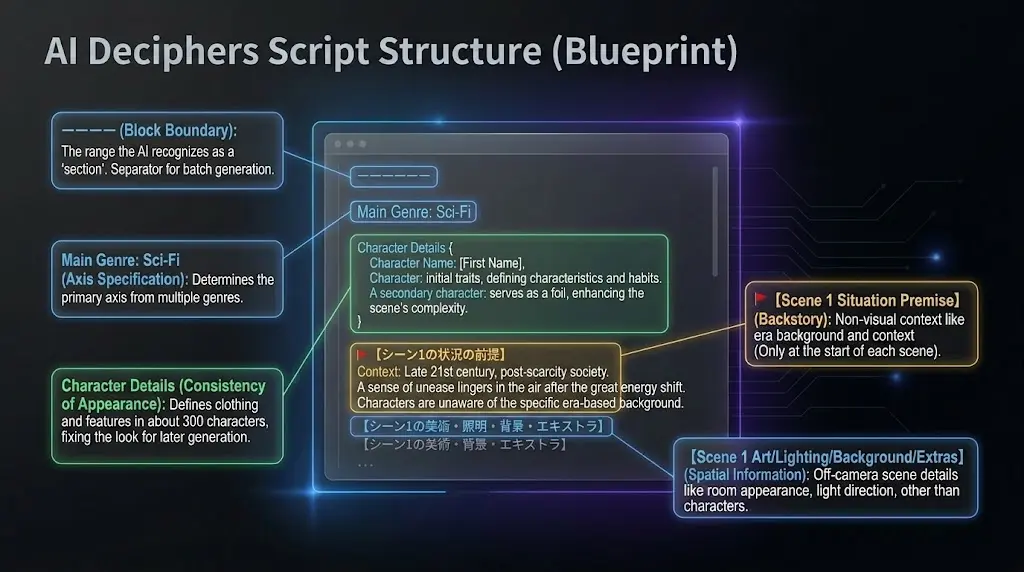
Wording varies by project. The overall shape looks like this (headings are fixed as shown).
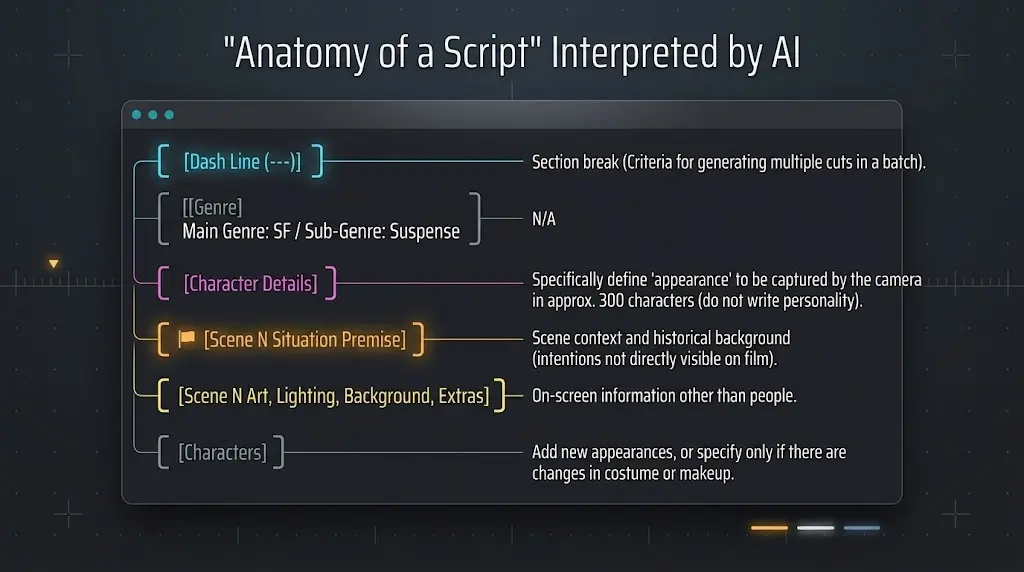
----------------

Episode 1 "The Gilded Trap"

Main genre: Mystery
Sub-genre: Suspense, social drama

Character Details
[Protagonist: Emily] … (one sentence, appearance only, ~300 chars guideline)

[Script Body]

🚩[Scene 1 — situational premise]
(Era, context, agendas — not directly on screen; do not invent facts absent from the script)

[Scene 1 — ART, LIGHTING, BACKGROUND & EXTRAS]
(Space, props, lighting, background extras — no named character looks)

[Characters — this scene]
No change.

(stage directions & dialogue)

🚩[Scene 2 — situational premise]
(Each new location/time still starts with premise)

[Scene 2 — ART, LIGHTING, BACKGROUND & EXTRAS]
(Next scene space, lighting, etc.)

[Characters — this scene]

[New characters]

[Suspect — new]
… (first-appearance look in full detail)

(stage directions & dialogue)

🚩[Scene 3 — situational premise]

[Scene 3 — ART, LIGHTING, BACKGROUND & EXTRAS]
(Another scene)

[Characters — this scene]

[Returning characters — wardrobe, makeup, or appearance change]

[Emily — look change #1 | date night | skin · makeup · wardrobe]
… (full post-change look, ~300 chars guideline)

(stage directions & dialogue)

----------------
They wrap the whole document. Bulk cut generation uses this span as the script document. The “Section X / Y” badge in the movie editor reflects fence-delimited block order (position).
A single line like “Episode 1 …” may appear. If omitted, the main-genre line comes right after the opening fence. Missing headings can desync the badge’s section index from “Episode N” text in the script.
Reflects selected genres and any Main chip. Sub-genre may be “none” if there is nothing to list.
A cast list before the script body. Each character is one sentence: commas inside, a single period at the end. It specifies job, age, ethnicity, height, build, hair, eyes, clothing, accessories — about 300 characters as a guideline (no personality or mannerisms).
After this heading, the screenplay continues scene by scene.
Placed **first** in each scene. **Only** this premise heading line starts with **🚩**; **N** matches the paired art heading. Off-screen context that shapes how the scene reads (era, narrative flow, agendas). **Do not invent facts** absent from the script; keep spatial enumeration in the art block that follows.
**Right after** **🚩[Scene N — situational premise]**, once per scene: **[Scene N — ART, LIGHTING, BACKGROUND & EXTRAS]** with **no** leading 🚩 on this line. **N** is sequential across the script (restarts at 1 within a continuation). Describes space, props, materials, lighting — everything on screen except named character looks. Not repeated mid-scene.
It follows the **[Scene N — ART…]** block. Character looks go here, not inside the art block. Add sub-headings only when there are new faces or look changes (no empty sub-sections).
Compared to “Continue your script”
Continuations use the same per-scene order: **🚩[Scene N — situational premise]** → **[Scene N — ART, LIGHTING, BACKGROUND & EXTRAS]** → **[Characters — this scene]** (**N restarts at 1 within the continuation**; **only** the premise line has 🚩). Add **[New characters]** and/or **[Returning characters — wardrobe, makeup, or appearance change]** only when needed; otherwise a single **No change.** or **None.** line. Continuations still omit the upfront Character Details block and main/sub genre lines.
CM tab order
CM output order differs: after the script body come **Product Visual Details** or **Product/Service Details**, then **Character Details** (each product block is also one sentence, ~300 characters as a guideline).
💡 Character Details plus per-scene **[Characters — this scene]** blocks keep looks structured, so bulk cut generation can keep subjects consistent.
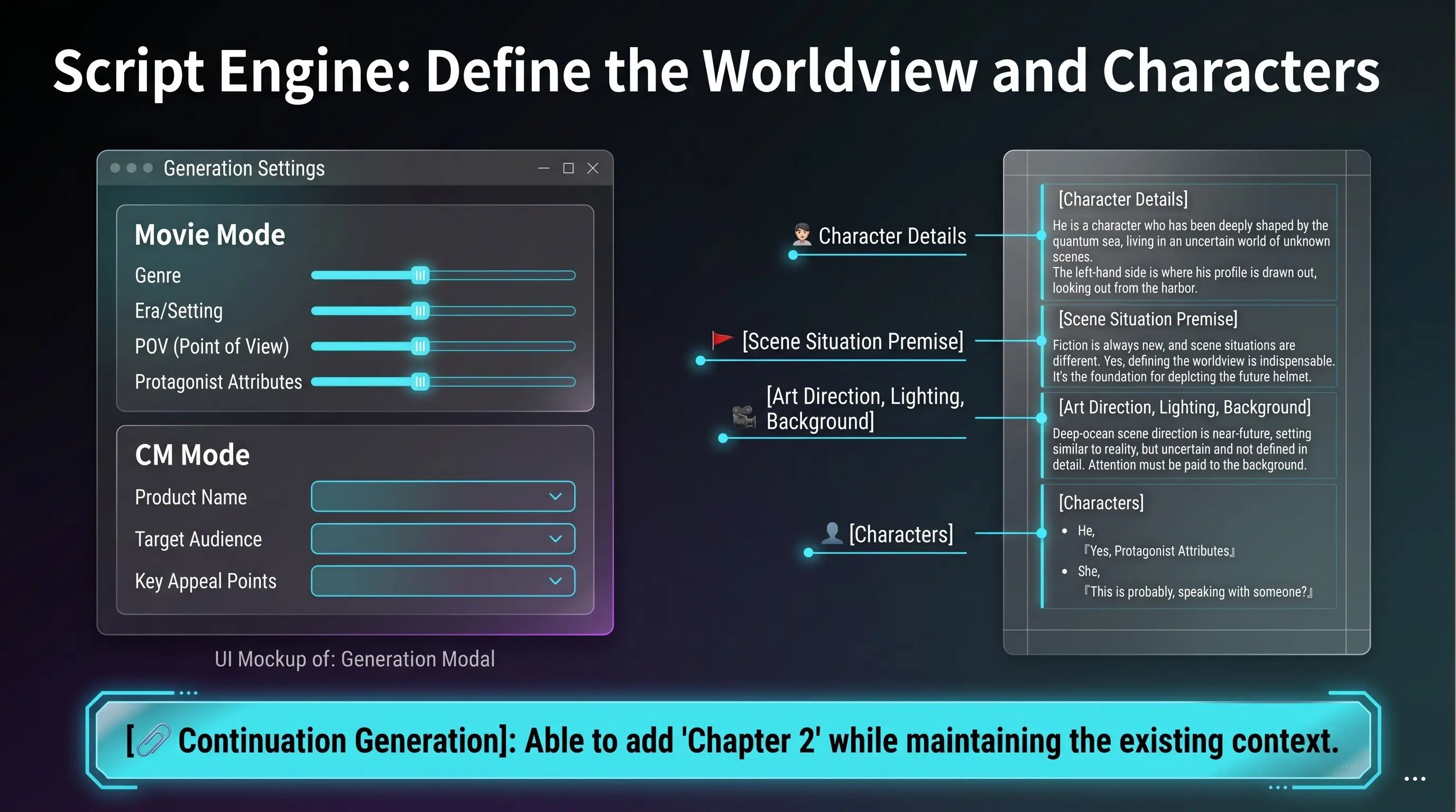
AI rewrites your entire script document from natural-language edits aligned with your directorial intent, plus optional quick instructions (preset text chips). It targets only the script in the text area — independent of timeline cuts. Compare before and after in a preview, then replace the full script in one step.
In the left column, click 📝 Rewrite (台本修正) in the lower row of the script toolbar. (Polish anything that bothers you in the script here — cut generation later is driven from this text.)
In the modal, type freeform rewrite notes. You don’t need a perfect prompt — just say what you want changed, straight.
e.g. shift the story to a happy ending, or make the boss look scarier — AI rewrites the full script to match your intent as director.
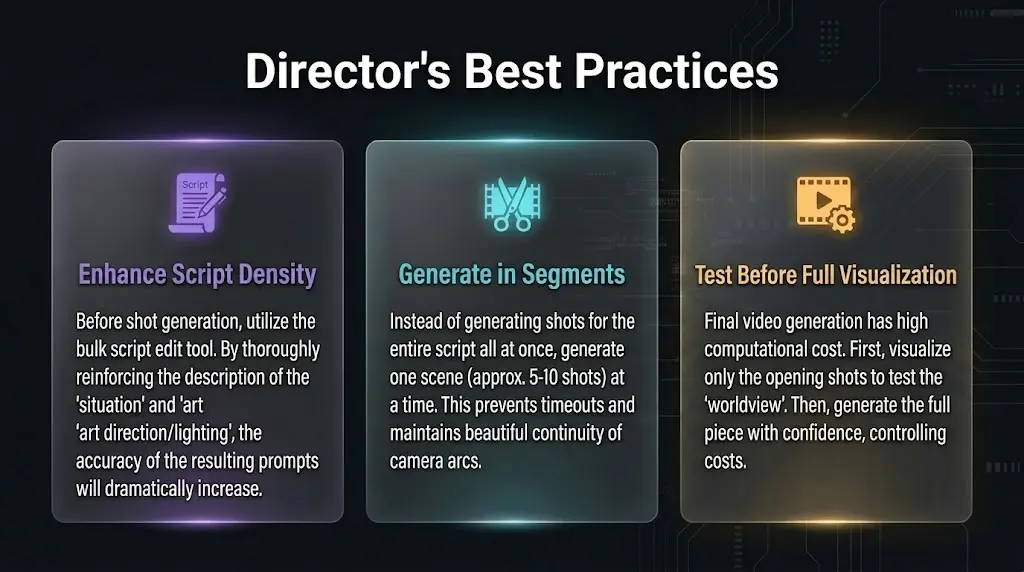
Once the script feels right, use the default quick instructions to add depth — situational explanation, world-building, art direction — so the next cut-generation step tends to track your story more accurately.
Run sends the job; AI returns the rewritten full script. This action consumes 2 prompt credits (per the app’s credit settings).
Compare before and after side by side. Apply replaces the entire script text. Cancel keeps your original script, but credits are still consumed because the API already ran.
✏️ Inline edit rewrites only your selection (1 prompt). 📝 Bulk rewrite targets the full script document with a before/after preview and uses 2 prompts.
Select part of your script by dragging, then send editing instructions to AI via a floating panel. Only the selected portion is rewritten.
Hide the timeline to make the text area editable.
On the script text, drag with your mouse to select the range you want to edit.
In the panel that appears when you select text, enter instructions in natural language.
AI rewrites only the selected portion while considering the full script context. Consistency with surrounding context and character settings is maintained.
This feature is unavailable while the timeline is visible, as the text area becomes read-only. Please hide the timeline first.
Script done—but should you commit to cut generation yet? Visualize each episode as one sheet so you see first and decide fast, before the long read.
Google Gemini builds storyboard sheets or character reference sheets from your script—panels per scene, or cast in a row. One sheet = 10 AI credits per episode fence (`-----`).
AI scripts grow long fast. A few seconds on one episode sheet conveys tone, staging, and climax direction. Text for detail, boards for decisions—that’s the design.
Instant go / no-go
Skip the full read—one sheet per episode shows tone, drama, and cast looks so you decide fast.
See blocking and story flow
Multiple panels on one sheet—scene turns, blocking, and cut rhythm at a glance.
Complements cut generation
Bulk cuts handle Veo/Sora prompts; storyboards and character sheets sit upstream for vision sharing.
Compare versions
Premium: 2 per episode, Studio: 5. Swap after rewrites and compare before and after.
Read-through in Reader mode
Reader inserts boards after each episode fence—script and visuals alternating.
Film strip on mobile
Scroll EP1, EP2… above the script. Tap fullscreen; rotate for detail on the go.
Character sheets
Horizontal cast reference—share who looks like what, especially in cinematic or live-action styles.
Production-style layout—scene titles, action, dialogue in panels. Lightweight 1K WebP prioritizes overview over fine print.
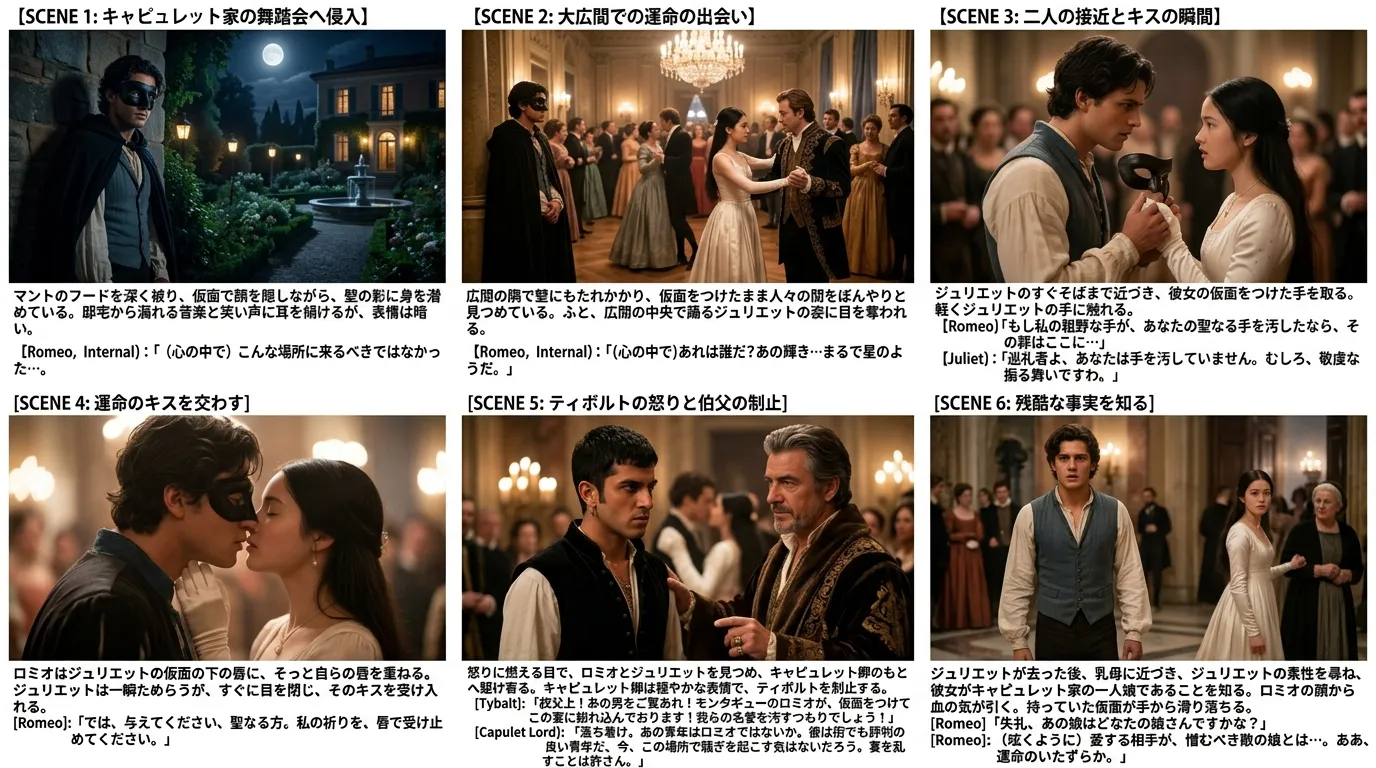
Switch styles per episode in “+ Gen”. Color/Sketch for rough sharing; Cinematic/Live-action to judge the finished look. Compare 2–3 at 10 credits each.
Color (Anime)
Manga-inspired tone
Sketch
Pencil rough
Cinematic
Film lighting & texture
Live-action
Photorealistic
Horizontal cast reference per episode—share who looks like what on one sheet. Generate before storyboards for better consistency.

Once boards say “yes, shoot this,” proceed with bulk or single cut generation. Entering cuts with the big picture clear cuts rework.
Jump to bulk cut generation →Costly image APIs (10 credits/sheet), but they compress hours of reading and doubt into one visual. Ideal for script → boards → cuts end to end.
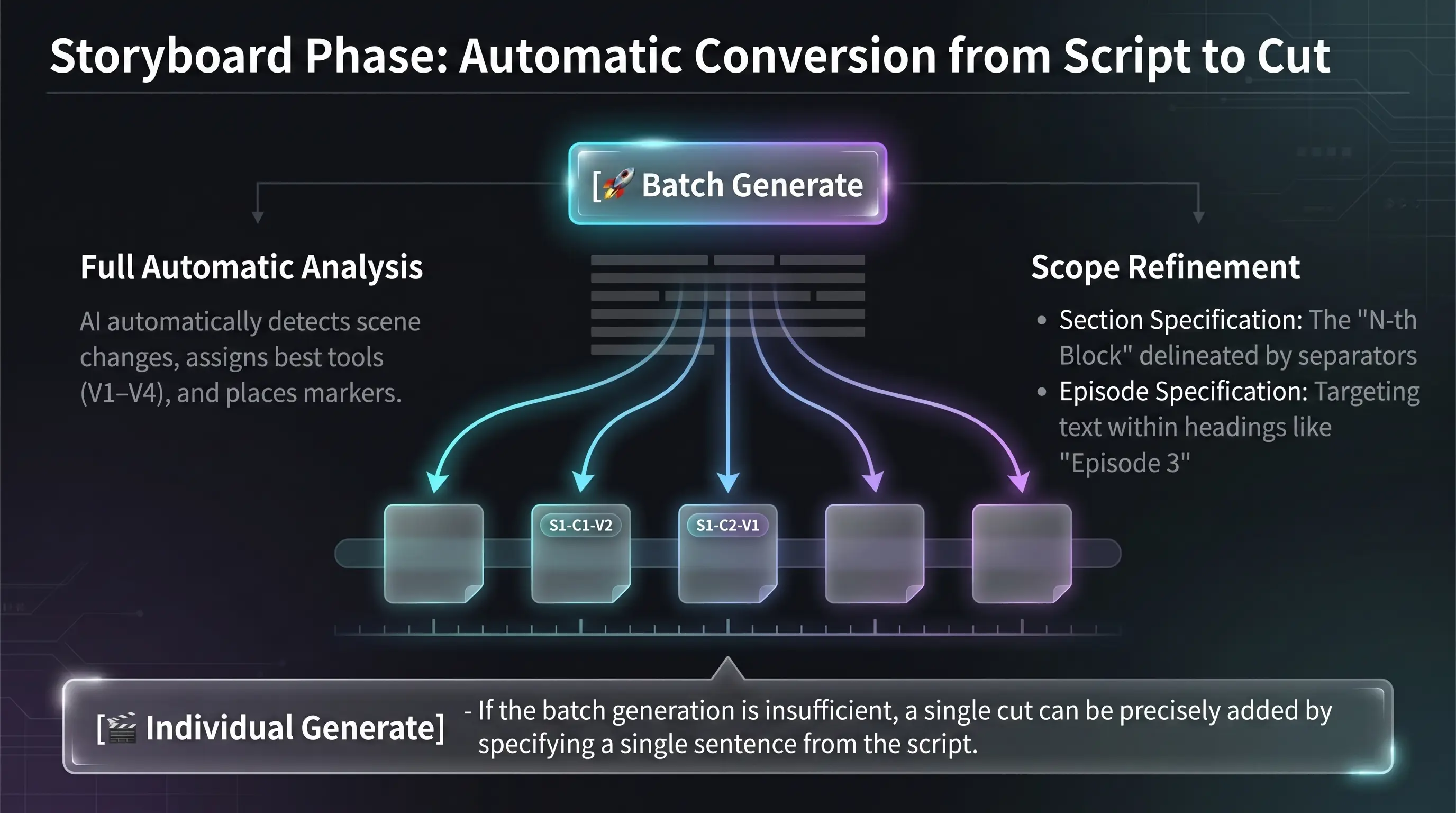
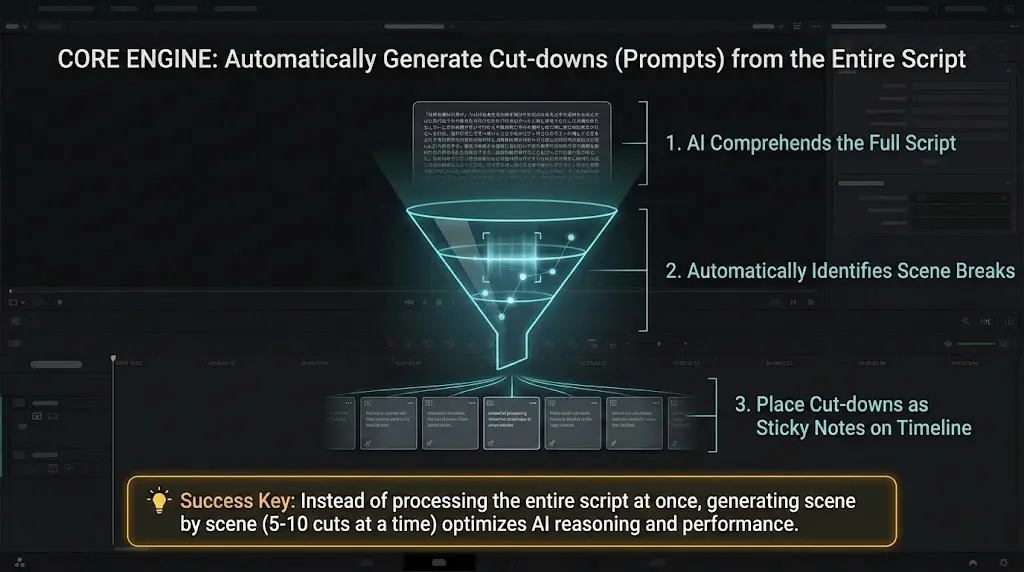
AI reads the full script, infers scene changes, and bulk-generates cut stickies. This is Director’s Console’s flagship AI workflow.
If you run **without narrowing scope**, the **entire script** is cut-listed in one go. That can **consume many prompts** (for example **50+** in a single run)—especially on long scripts.
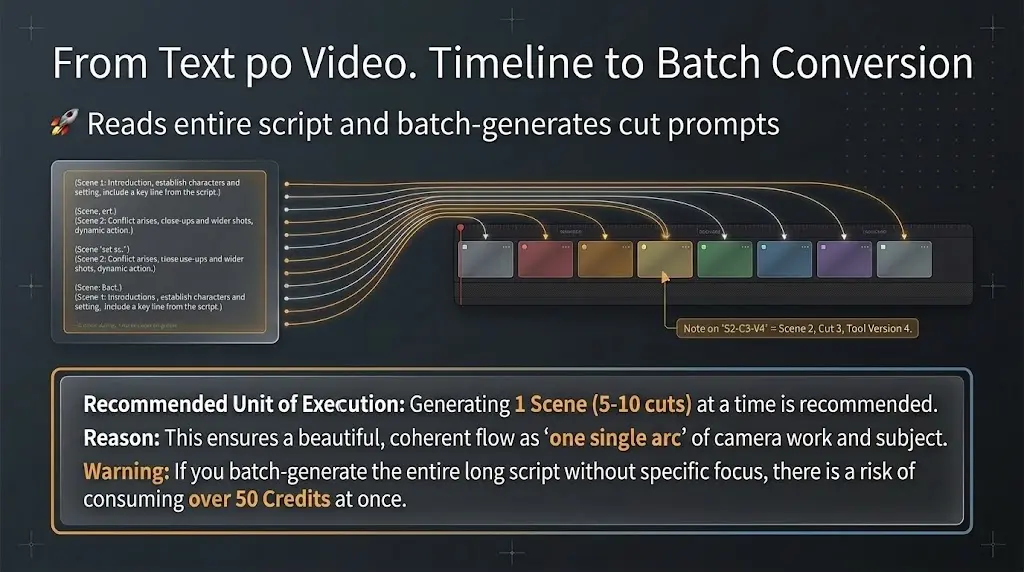
We recommend bulk-generating in **chunks of about 5–10 cuts per scene**. Treat each scene as **one continuous arc** (camera, framing, blocking continuity)—**doing so** aligns better with how the model reasons.
In the **bulk cut-generate** panel, use **+ Choose…** to target **🚩** scene blocks line-by-line.
If the tone or characters feel off after a run, **revise the script** or **start a fresh project**—usually faster than forcing bad cuts forward.
Downstream **video generation** is often expensive. Try **just the first few cuts** as video, decide whether to continue the piece **after you see pixels**—that saves both **video spend** and **prompt usage** in Director’s Console.
If scene numbers / **🚩** headings are missing or inconsistent, open **Rewrite entire script** (📝) and run the quick chip **“Align headings to the numbered format”** before bulk generation—much easier for the model to interpret.
Bulk cut generation **reads your whole script**, so **polish the script first**. After **Generate scripts & stories with AI**, keep asking for edits in plain language until the story and characters feel right, then use **quick chips** to deepen premise, background, extras, and other blocks—**raise information density before cut-listing.** For handwritten scripts too, following the **sample script format** makes **cut-generation quality** easier to keep stable.
Click the button at the top of the script area. The button is disabled when the script is empty.
You can bulk-generate **cuts for every scene** at once, but we recommend generating **one scene at a time** with clear instructions (**without a tight scope you may spend 50+ credits**). Aim for about **5–10 cuts per scene**; design each scene as **one continuous arc** (camera moves, framing, and blocking) so inference stays coherent. Treat **max cuts** as a rough guide—you may sometimes get more than the number you pick. You can also insert boilerplate via **Extra instructions** or the **pill buttons**. **Tip:** do not lean too hard on quick chips during bulk runs; **batch-tidy after generation** is often the smoother path.
Once executed, AI-generated cut stickies are automatically placed on the timeline. Each cut is linked to the corresponding part of the script. Script and timeline positions can drift—**right-click** (on mobile, **long-press**) to move a cut manually.
AI cut generation
When generating cuts, the AI reads your script and picks the best V1–V4 version for headcount and blocking in each shot.
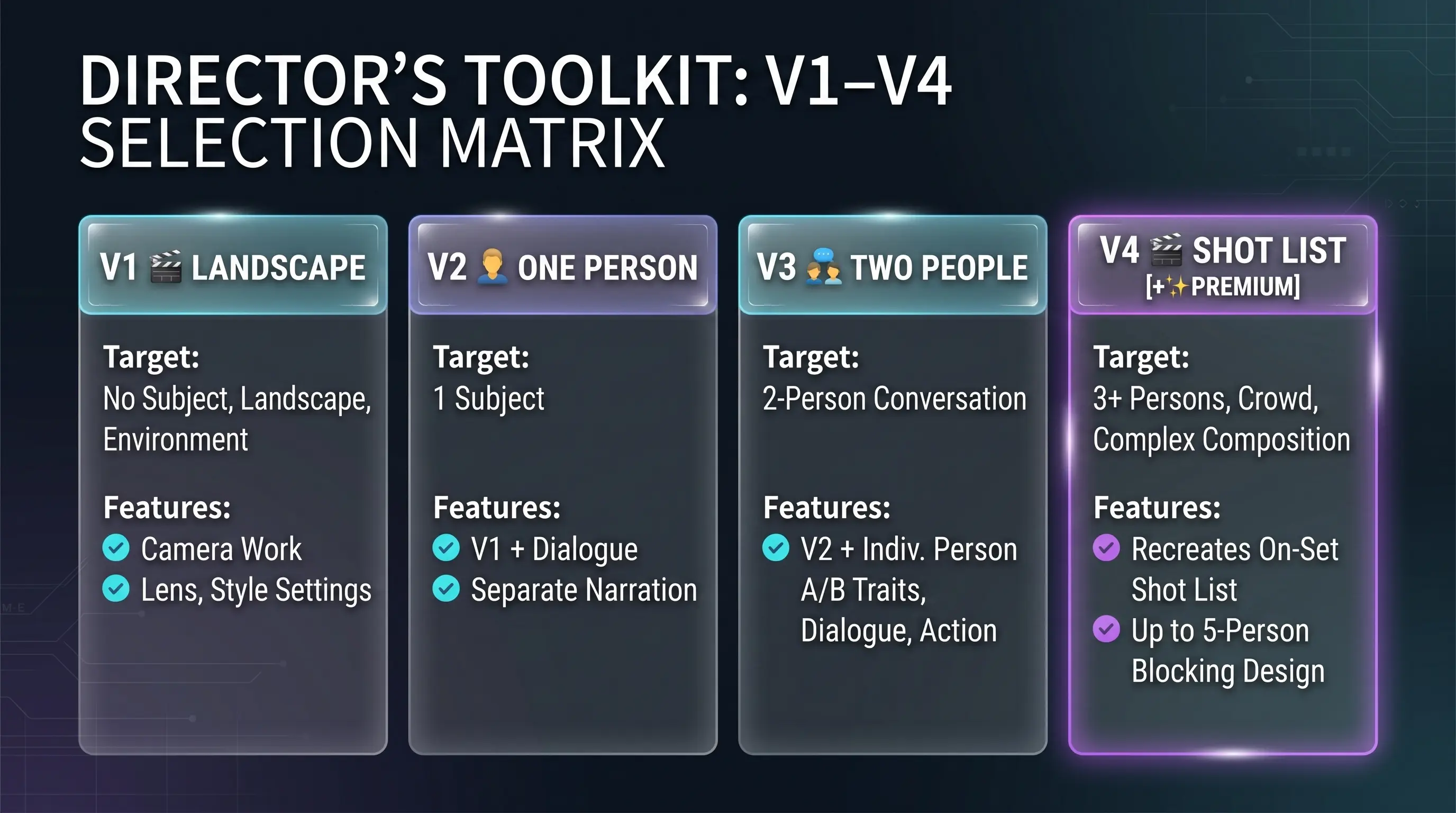
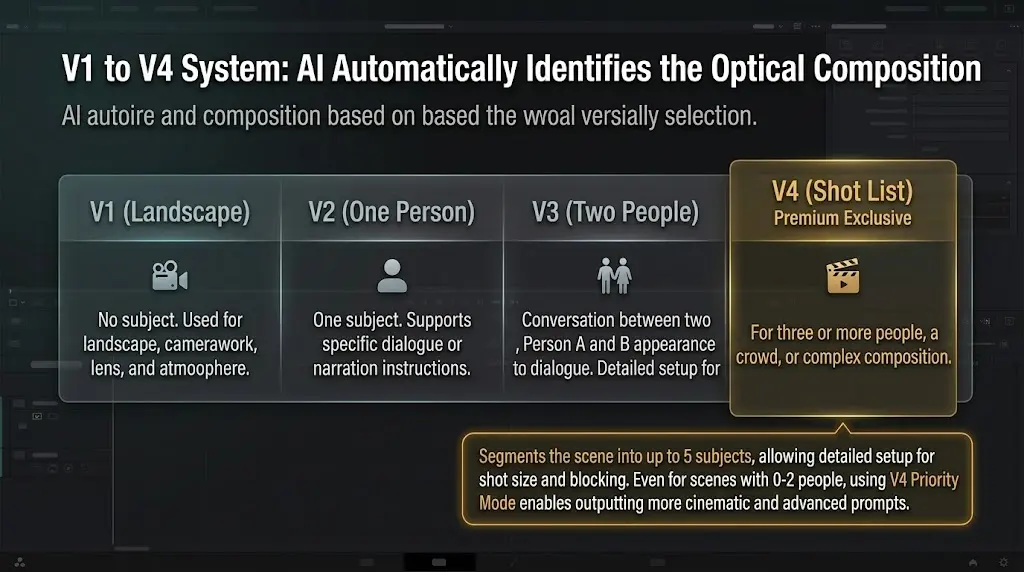
On **bulk**, **single**, **cut AI**, and **bulk cut AI** confirmations, **Premium** (and up) can choose **Auto** or **Prioritize V4**. By default movie cuts lean toward **V4 (shotlist)**; **no-subject** shots stay **V1 (scenery)**. **V4** supports detailed blocking, camera, sound, and props, so it works well for **zero-to-two** on-screen subjects. On **Premium**, producing everything in **V4** is also an option—and often the best-balanced choice.
For scenes without subjects or landscape cuts. Designs camera work, lens, atmosphere, and style.
For cuts with a single subject. Optional dialogue plus separate narration field.
For cuts with two characters in dialogue. Sets appearance and lines for both Person A and Person B.
For 3+ people, crowds, and complex shots. Up to five subjects plus shot size, blocking, and more.
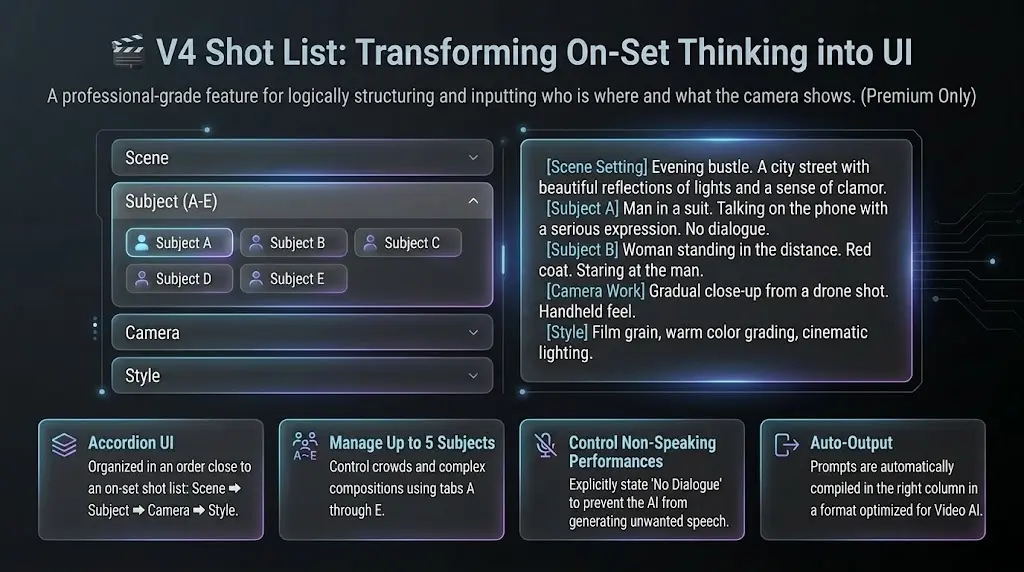
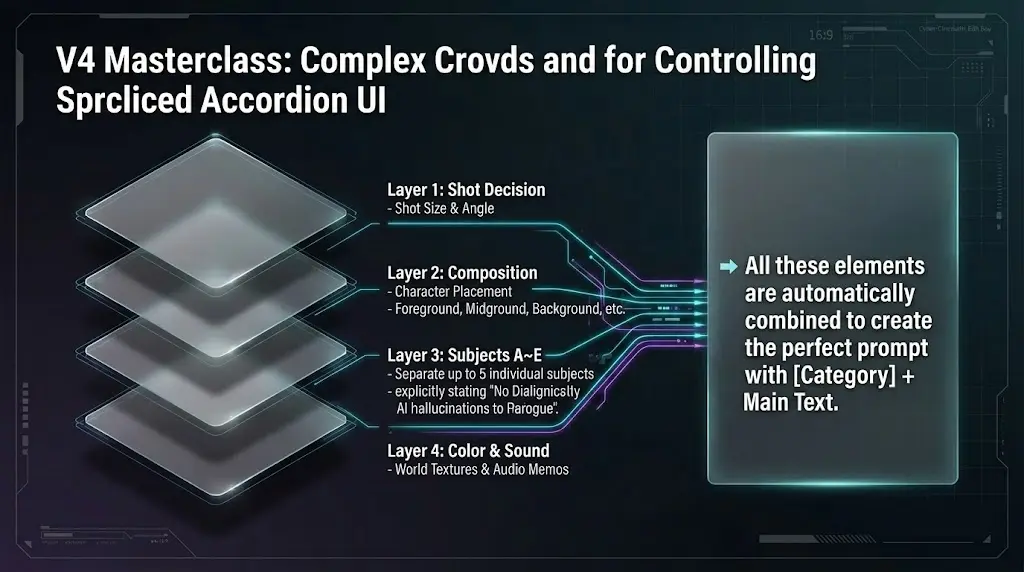
Think **shotlist-style** like on set: enter *who is where* and *what the camera shows* as separate pieces. **More parameters** than V1–V3, so you can use it for **0–2 subject** cuts too—and we recommend it.
In the movie editor toolbar, click **V4** (Shotlist) next to V1–V3. **Premium** feature.
Turn on the timeline and place a sticky where this shot belongs in the script—same as other tools.
The center column uses **accordions** and tabs: **Scene** → **Subjects (tabs A–E)** → **Camera** (shot size, angle, focus…) → **Style & art**—like a real shotlist. Leave unused subject tabs empty.
The right column assembles **【Category】 + text** lines so detailed directions read clearly for video AI.
Cut stickies from AI bulk or AI single use a wide label (e.g. S2-C3-V3 or S2-C3-V4). S is the script scene index: use N from [Scene N — ART, LIGHTING, BACKGROUND & EXTRAS], including older 🚩 [Scene N — ART…] headings with the same N. Do not take N from 🚩 [Scene N — situational premise] for S. C is the cut index inside that scene. The trailing V3 / V4 is the tool version (V4 = shotlist for three or more people).
If the script uses fence lines (only long runs of ー or -) between episodes, labels may start with EP (e.g. EP2-S1-C3-V2). A single block without episode fences usually looks like S2-C3-V4 without EP.
Manually placed stickies, or older data created before labels existed, may stay as small badges showing only V1 / V2 / V3 / V4.
**Hover** a sticky to see a tooltip: label, cut title, camera work, the **start of the scene line**, and more—handy when you refer to a specific cut.
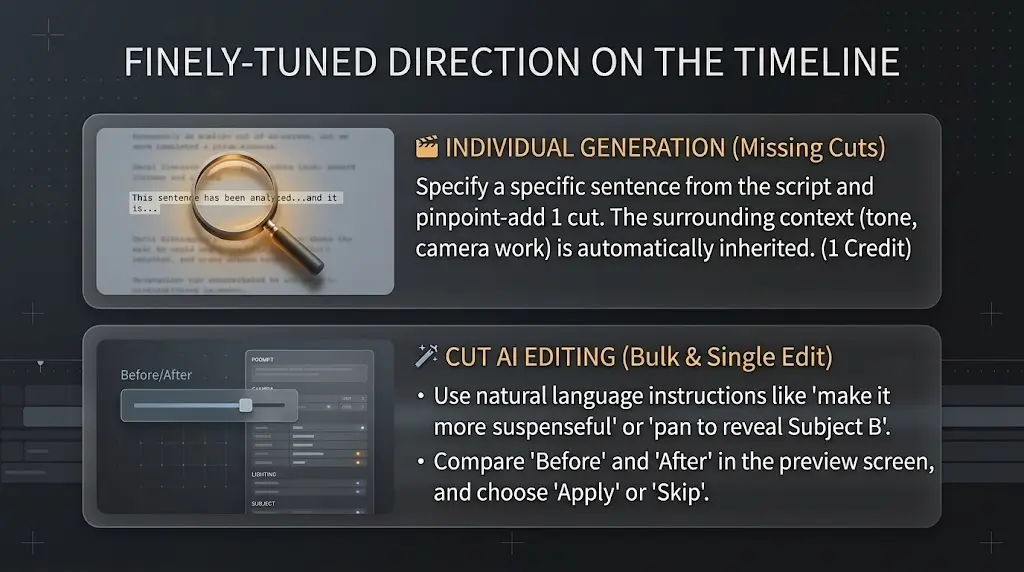
Generate a single cut by specifying a particular part of the script. Useful when you want to add missing cuts after bulk generation, or create a cut for a specific scene.
If your **free plan** includes the **limited-time 10 credits**, using **single-cut generation** here little by little lets you try more with them.
Click the button at the top of the center column form. Available regardless of sticky selection.
Specify which part of the script the cut corresponds to. Enter the target text in the expanded field or select a range from the script preview. For dialogue scenes, copy-paste the line(s) you want for that cut, then generate.
AI references the full script and character details to generate one optimal cut for the specified section. Consistency with surrounding cuts is also considered.
The generated result is auto-filled into the form. You can review and fine-tune before creating a sticky.
💡 Information from surrounding cuts is automatically passed to AI, maintaining consistency in tone, camera work, and timeline.
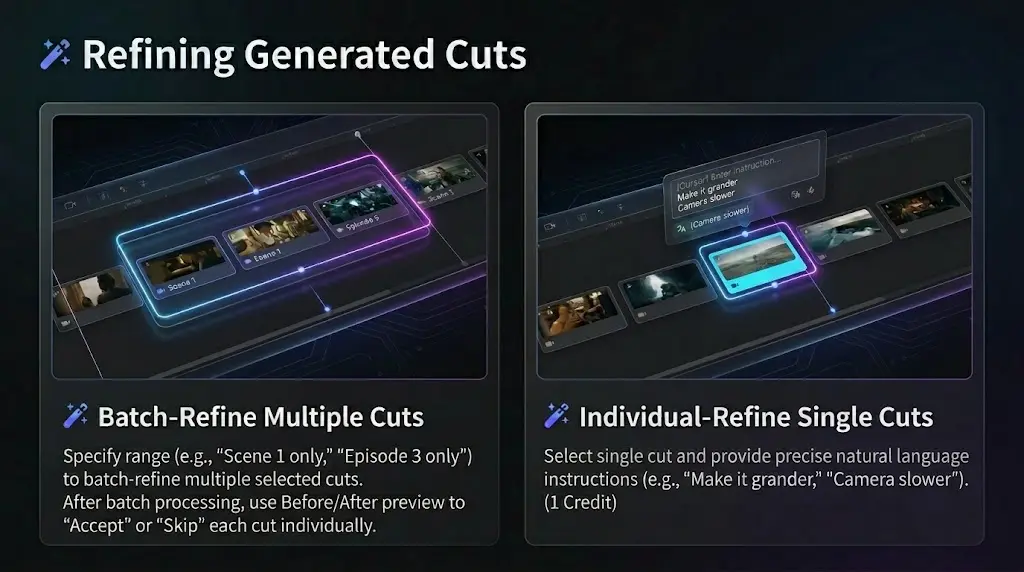
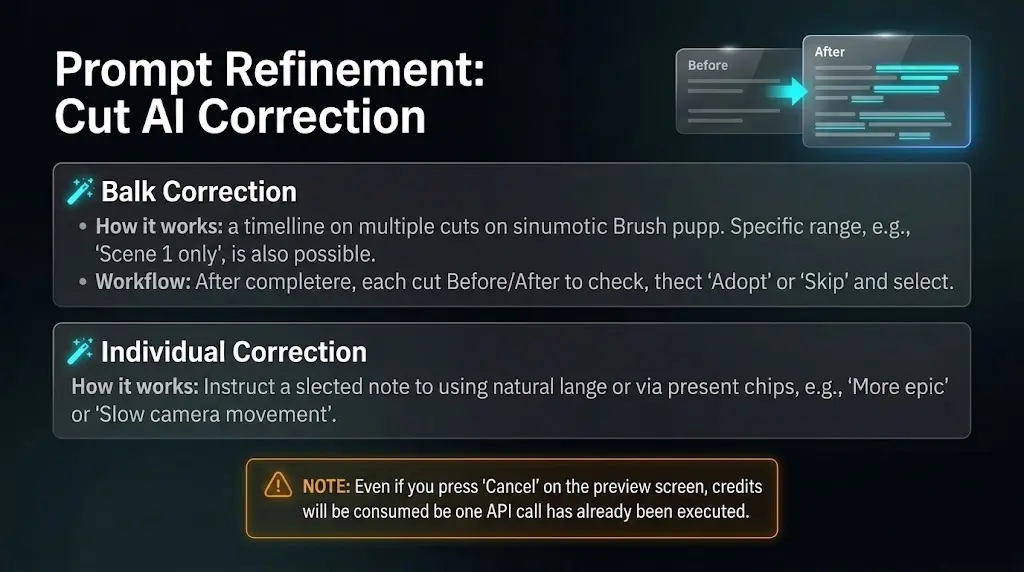
Brush up cut stickies on the timeline against your script in one go. One instruction can refine multiple cuts; after the run, review each cut in a preview and choose apply or skip.
Bulk cut refine targets stickies. The modal won’t open if there are none.
In the left column, open the lower script toolbar row and click 🪄 Bulk refine.
In the bulk panel, pick the cuts to refine and enter instructions. Start with plain language (e.g. “more specific subject acting—verbs in detail”), then use quick chips on the text chips to raise information density.
After the run, review each cut’s Before/After and choose apply-and-next or skip. Ending the preview leaves unreviewed cuts unchanged.
Bulk refine processes many cuts with one instruction; **credits follow how many cuts the AI returns (min 1 on success even if zero returned; failures such as timeouts still cost 1 credit per request).** Single refine targets one selected sticky from the center column’s AI Refine button and uses 1 prompt.
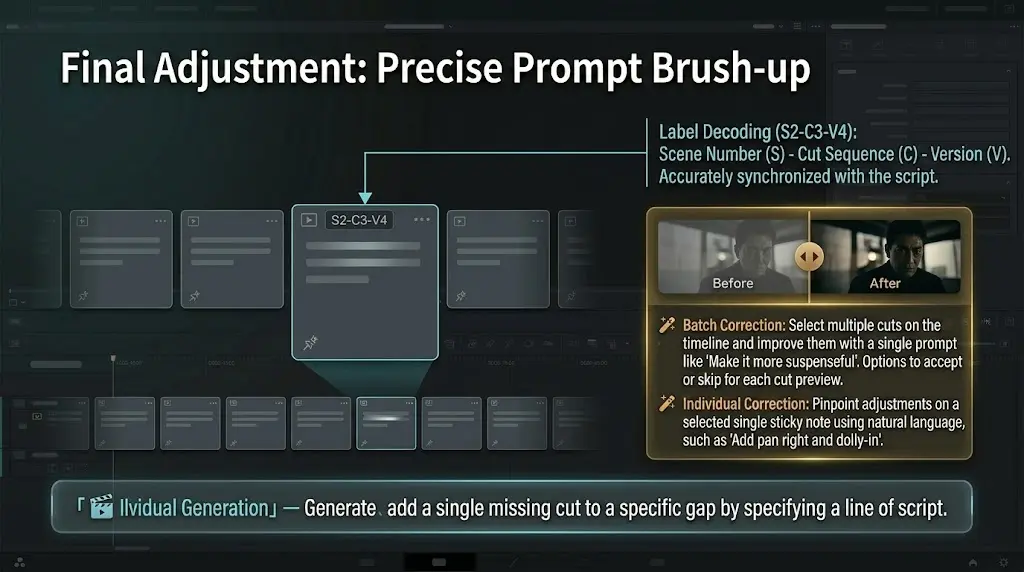
Improve one selected cut sticky with AI suggestions. Give instructions in plain language—for example: “Pan left and dolly in to catch subject B, and adjust blocking to match,” or “make this cut feel more suspenseful.”
Click a sticky on the timeline to select it. Alternatively, right-click a sticky and choose "AI Refine" from the context menu.
Click the button at the top of the center column form. Disabled when no sticky is selected.
Enter instructions in the expanded field. Write freely or use preset chips ("shorten", "add detail", "more emotion", "cinematic", etc.).
The AI-generated revision is displayed alongside the original data. You can review the changes.
If the revision looks good, click "Apply". Click "Cancel" to keep the original data.
Compare original and revised data side by side. Form data remains unchanged until you click "Apply", so you can review with confidence.
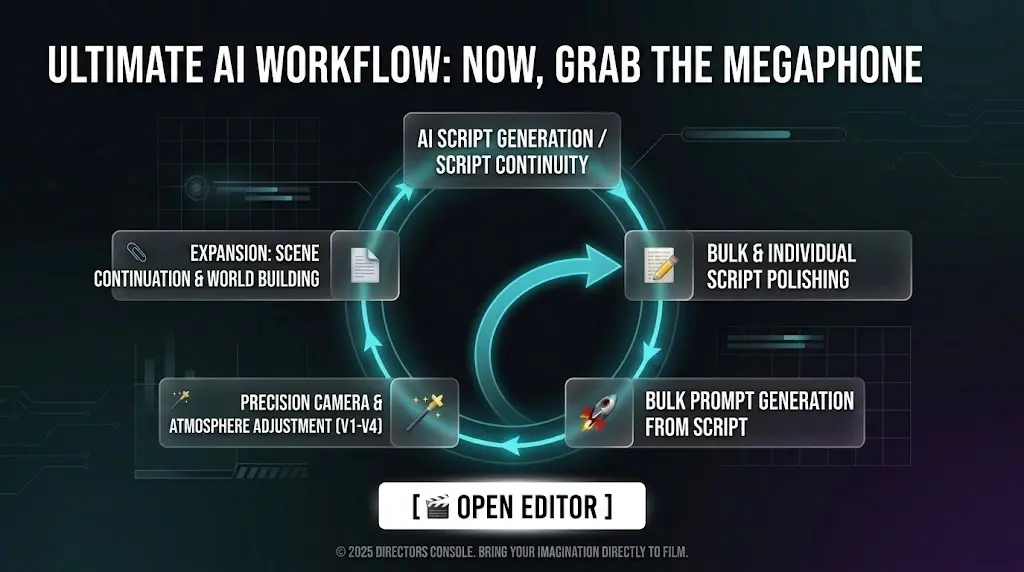
AI writes what comes next in your open script, guided by options you choose. Unlike scratch generation (📓 Script), it extends your story — episode 2, the next chapter, or a follow-up CM beat — without replacing the file; new text is appended at the end.
Set where you continue from, what happens next, tension, how this stretch ends, how it opens, and director notes — all in one modal.
Switch tabs in the modal. For CM, product, selling points, and duration from the Script modal’s CM tab feed the continuation.
Continuations use 1–4 credits by volume (Short through Extensive), same as scratch script generation.
In the movie editor’s left column, under the script toolbar, click 📎 Next (or 続き). Requires a non-empty script and login.
In the modal, pick the tab. Choose where Part 1 ends (full script end or text marker), optional tail-only context for long scripts, plus beats, tension, ending, bridge, and freeform notes.
Run Generate continuation. Text is concatenated to your script. If you used a mid-script marker, the new part is inserted after that point and any text that followed the marker stays after the new block.
A separator line and heading are added at the start so you can spot new material at a glance (wording depends on language).
----------------
[CONTINUATION / NEXT PART]

(New stage directions & scenes follow…)Continuation does not create cuts (stickies). Use your appended script with 🚀 Bulk or 🎬 Single generation as usual.
The **Focus mode** switch at the top of the movie editor toggles a layout that behaves as **mobile focus mode** or **desktop focus mode** depending on screen width.
When Focus mode is on, **mobile focus mode** brings the left column — script, AI toolbar, and timeline — to the front. The director (middle) and output (right) columns are reached via the bottom nav. The header is grouped in a frosted panel with project title and AI credits.
On wide screens, turning Focus mode on enables **desktop focus mode**. The **three columns stay**, but the **left column** uses a compact header (title, focus switch, project, AI credits, timeline toggle, AI toolbar) and hides the nav row and console card. With the timeline on and a sticky selected, a **cut jump** (🎞️) appears **right below the timeline**, matching the mobile style.
AI features are not available to logged-out users or free plan users. Pressing AI buttons will show an upgrade modal.
All AI features become available when you subscribe to the Premium plan.
Up to 100 prompts per month. Resets monthly.
Usage counts generated prompt credits. New script and continue script: 1–4 by volume (Short 1, Standard 2, Long 3, Extensive 4). Single cut generation, cut AI refine, and inline script edit: 1 each. Full-script bulk rewrite: 2 per run. **Bulk cut generation from script:** one credit per cut generated. **Bulk cut AI refine:** credits follow how many cuts the AI returns (min 1 on success even if zero returned; failures such as timeouts still cost 1 credit per request).
Bulk generation consumes as many prompts as cuts generated (e.g., 10 cuts = 10 prompts).
For cut AI refinement and full-script bulk rewrite, clicking Cancel on the Before/After preview still leaves credits consumed (1 and 2 prompts respectively) because the API already ran.
For bulk cut AI refine, timeouts and invalid responses still consume 1 prompt credit per request.
| Feature | Consumption |
|---|---|
| Generate scripts & stories with AI | 1–4 by volume: Short 1, Standard 2, Long 3, Extensive 4 |
| AI bulk rewrite of the full script | 2 |
Workflow tipRecommendedYou can generate a full script in one run, but it often works better to generate scene by scene with a tight prompt for each. Full-script generation commonly splits into about four or five scenes. You can also copy the passage you need, point the AI at that slice, and build one scene at a time. On the free plan (limited time: 10 credits/month), that workflow stretches your credits further. | |
| Refine any part of the script with AI | 1 |
| Bulk-generate cut prompts from the full script | Per generated cut |
| Fill gaps: generate individual cuts from script lines | 1 |
| Bulk AI refine of cut prompts | By cuts returned (min 1 on success even if zero; 1 credit per failed request; capped by monthly limit) |
| Individual AI refine of cut prompts | 1 |
| Continue your script with AI | 1–4 by volume: Short 1, Standard 2, Long 3, Extensive 4 |
Script volume guide: Short ~2000–3000 chars / ~5 cuts; Standard ~3000–4000 / 8–10; Long ~3500–4500 / 10–15; Extensive ~4000–5000 / 15–20. Source of truth: src/lib/aiCreditCosts.ts.
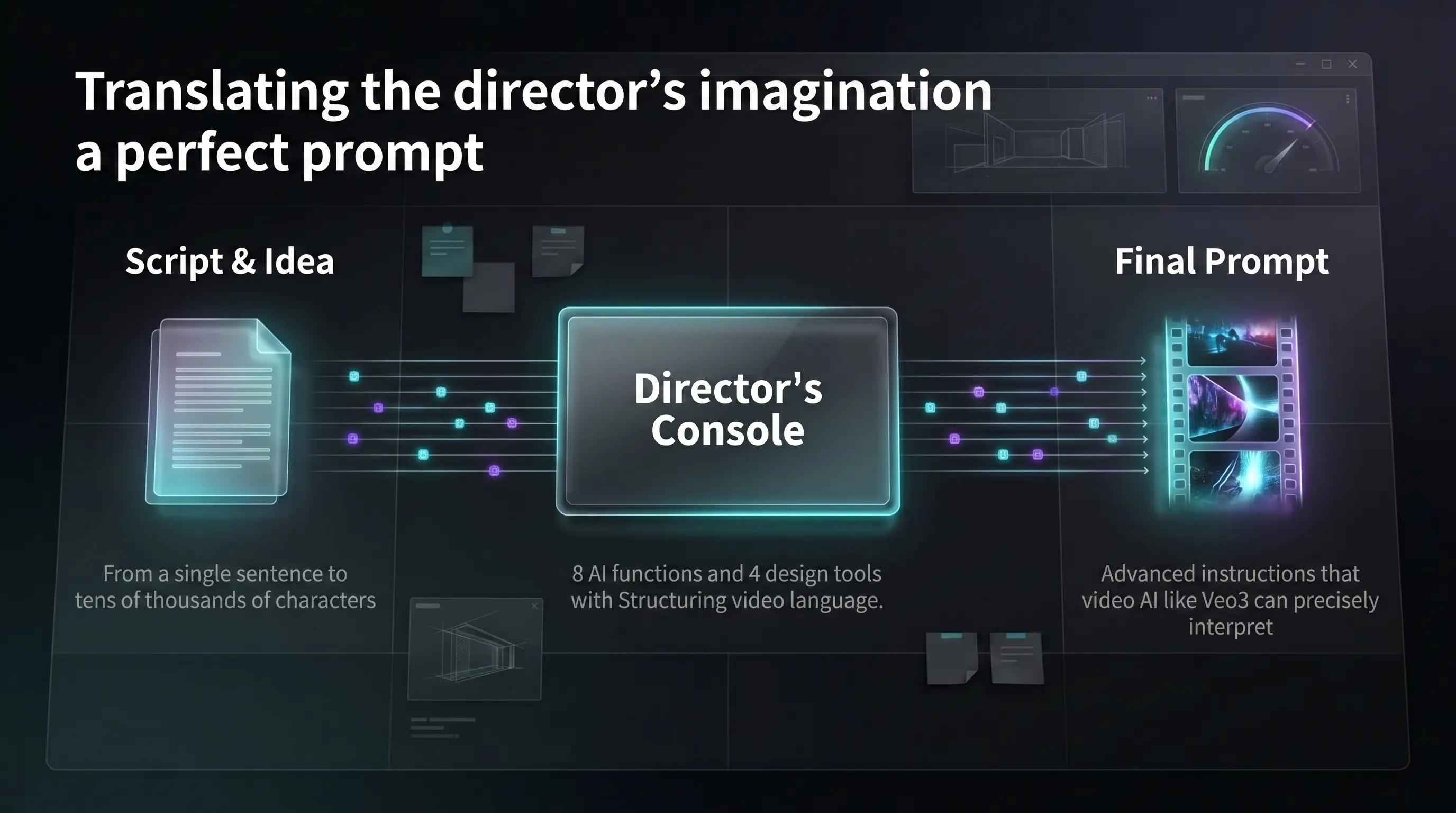
With Directors Console's AI features, AI supports your entire video production workflow — from script creation to cut generation and refinement.