Getting started
Six steps from script to cut prompts.
Introduction
Directors Console is an AI-powered film production support tool designed to help film directors, video creators, and content creators efficiently create prompts and improve their film production workflow.
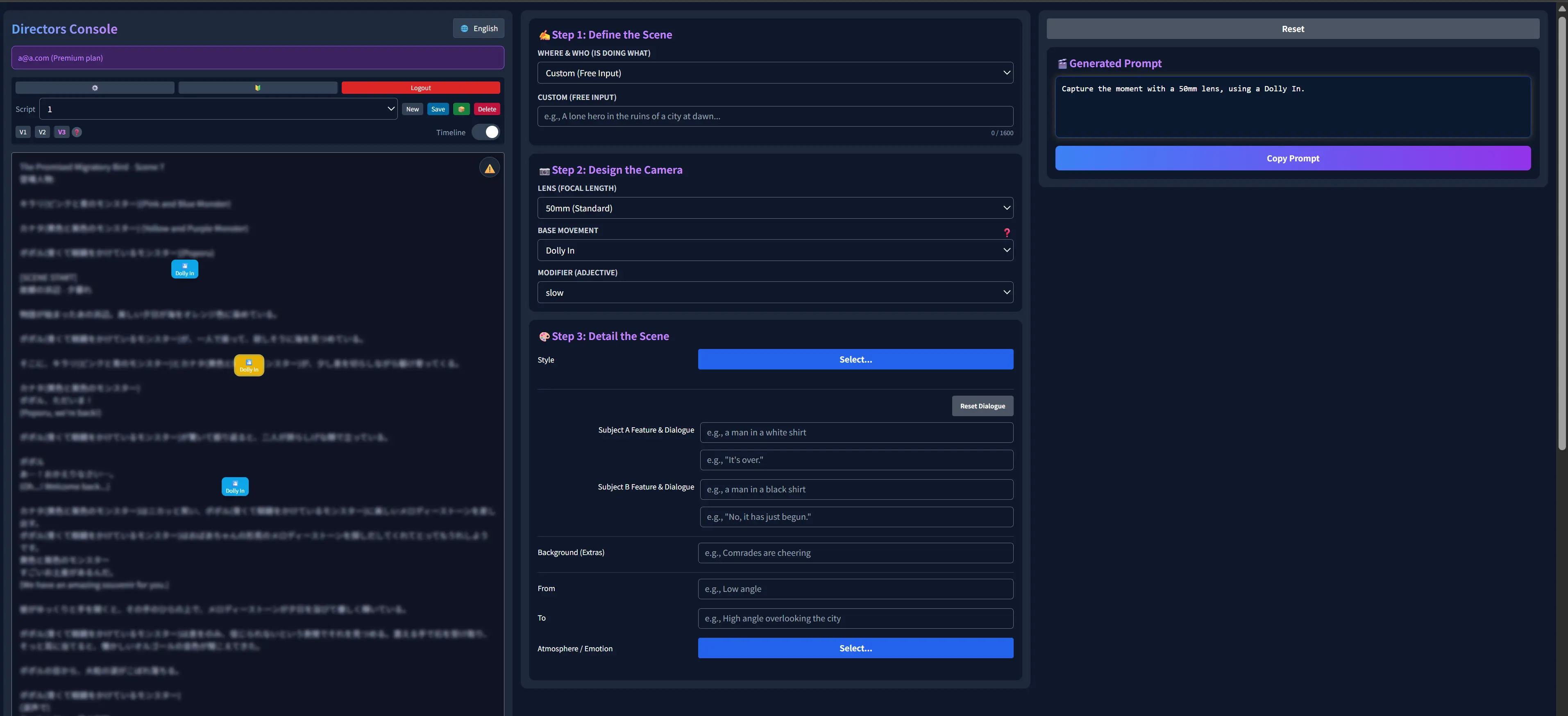
🚀 Basic Workflow
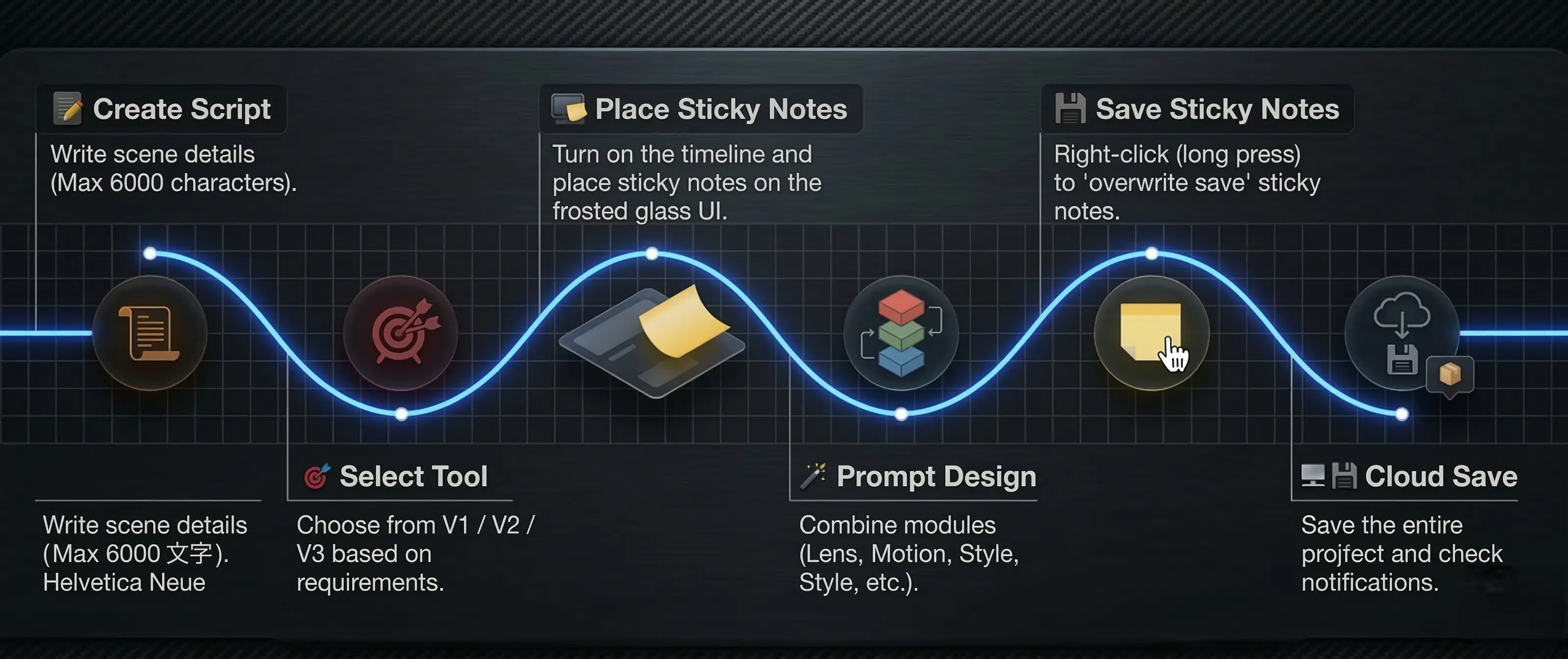
📝 Create Script
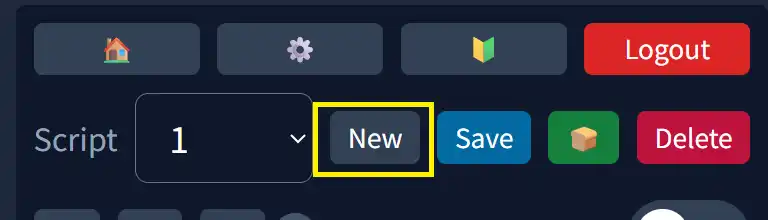
Create a new script and set its name.
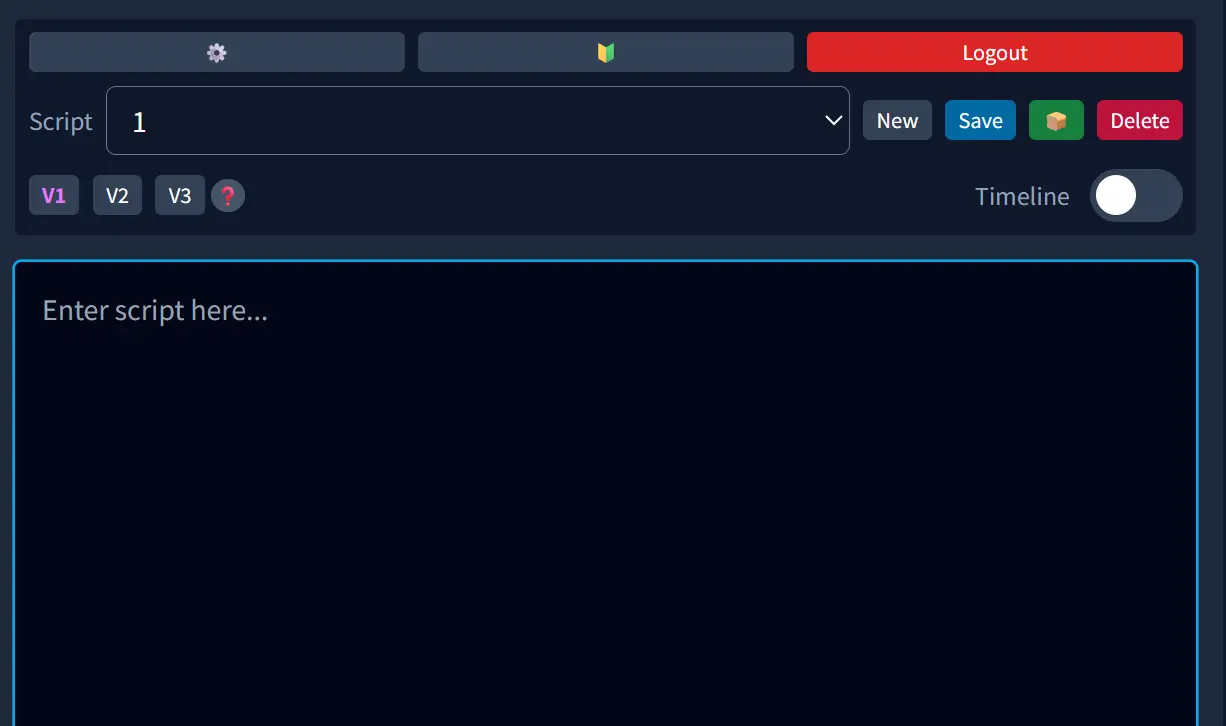
In the script area, describe the story and scene details of your film. Free accounts can enter up to 13,000 characters; Premium and Studio accounts can enter up to 30,000 characters.
AI script generation
Combine rich preset choices—genre, tone, era, keywords, character traits—to generate your original story as a full script draft with character details in one step. You can also turn your own ideas or a synopsis into a full script.
🎯 Select Tool
Pick the right tool from V1–V4. V4 is a shotlist-style mode for 3+ people and crowds (Premium).

📍 Turn on Timeline and Place 📌 Sticky Notes
When you turn on the timeline, a frosted glass timeline appears above the script.

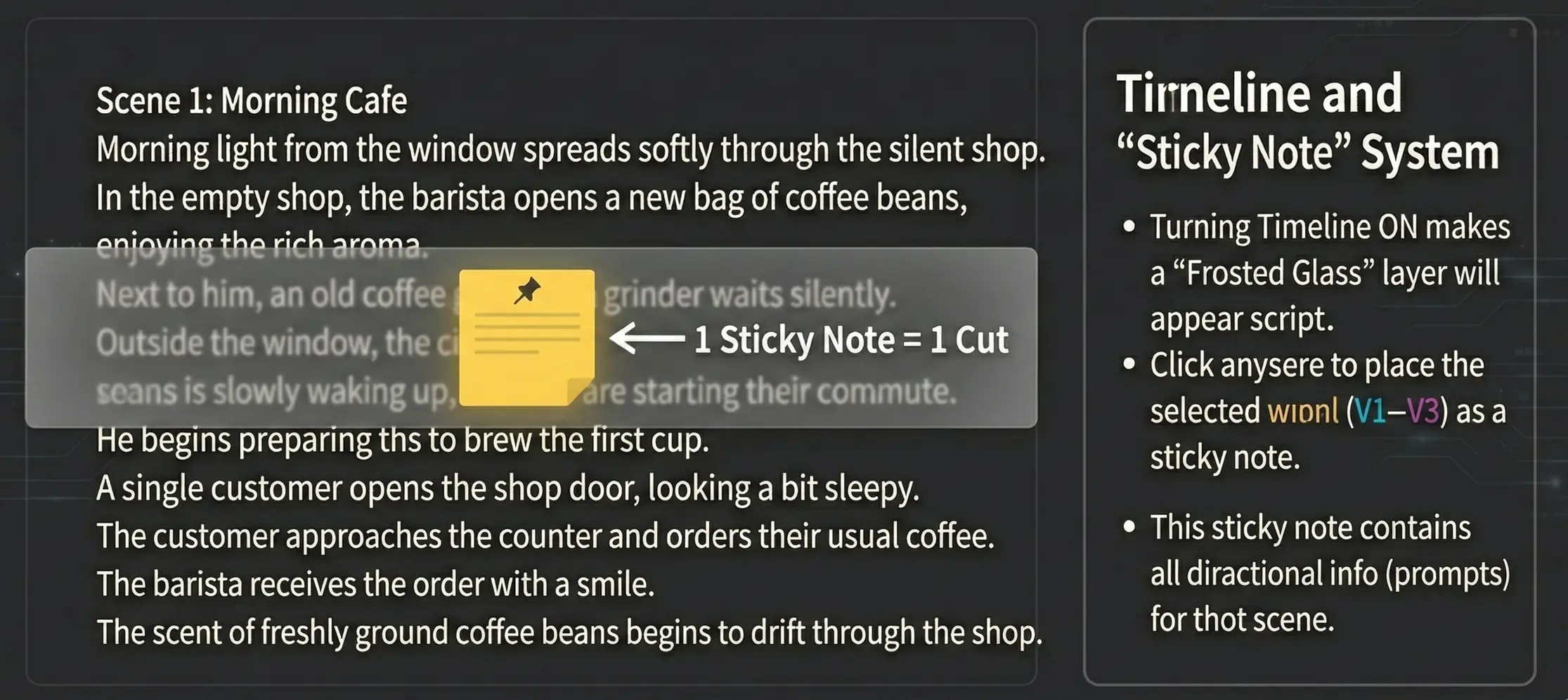
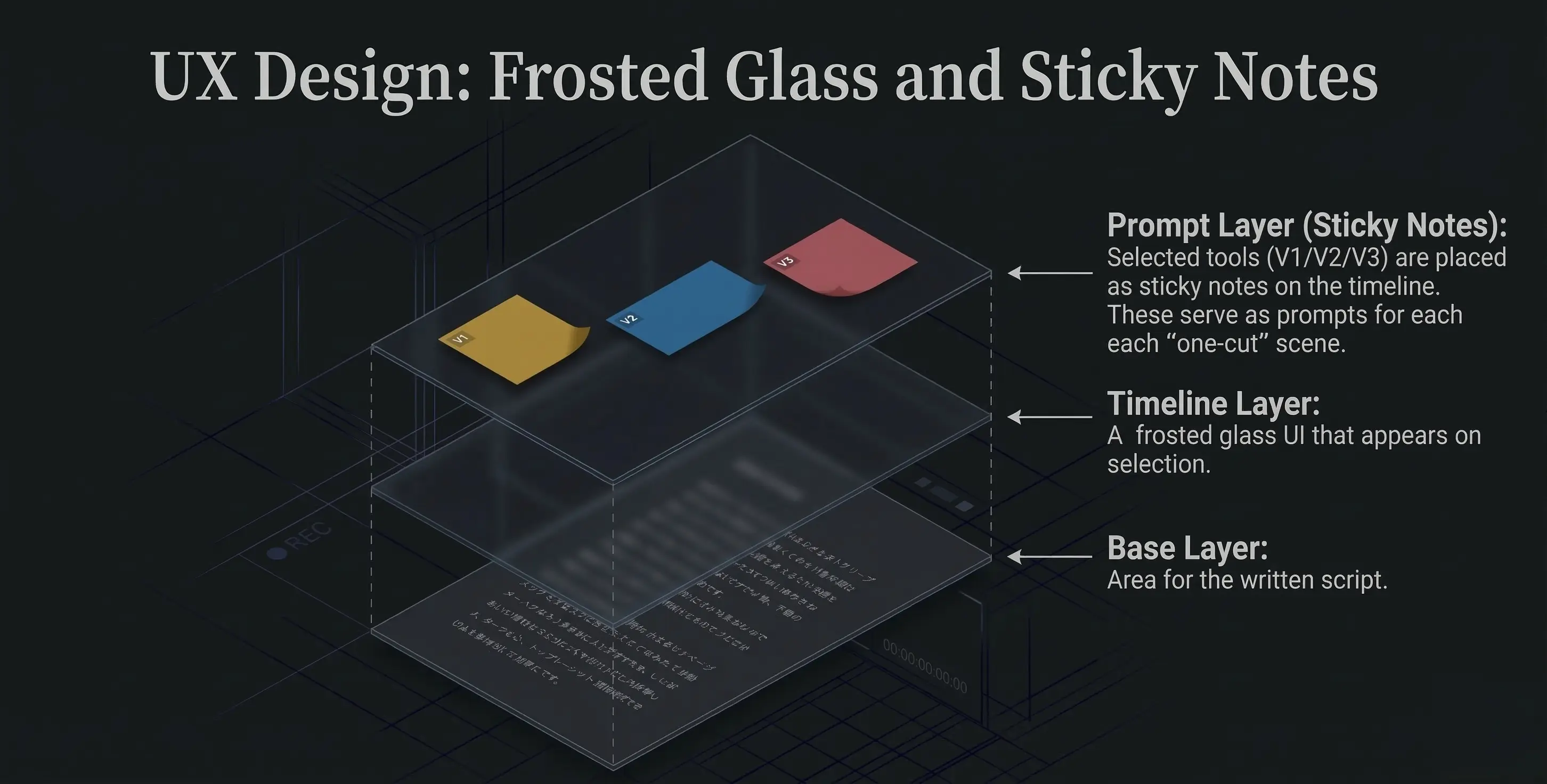
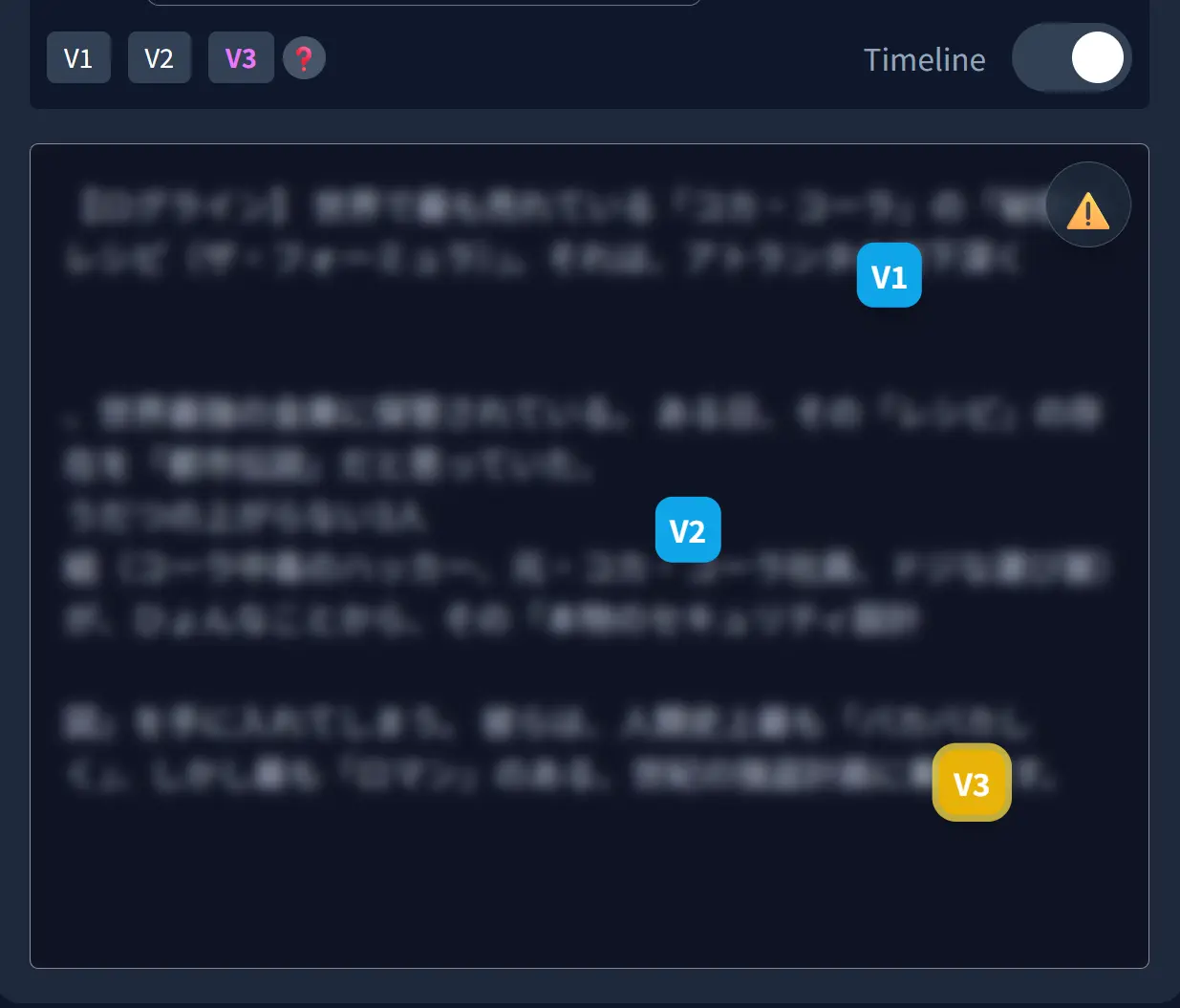
Click on the relevant part of the script to place a sticky note (prompt).
Confirm that the tool you want is selected, then click anywhere on the timeline.
The selected tool (V1–V4) is placed on the timeline as a sticky note.
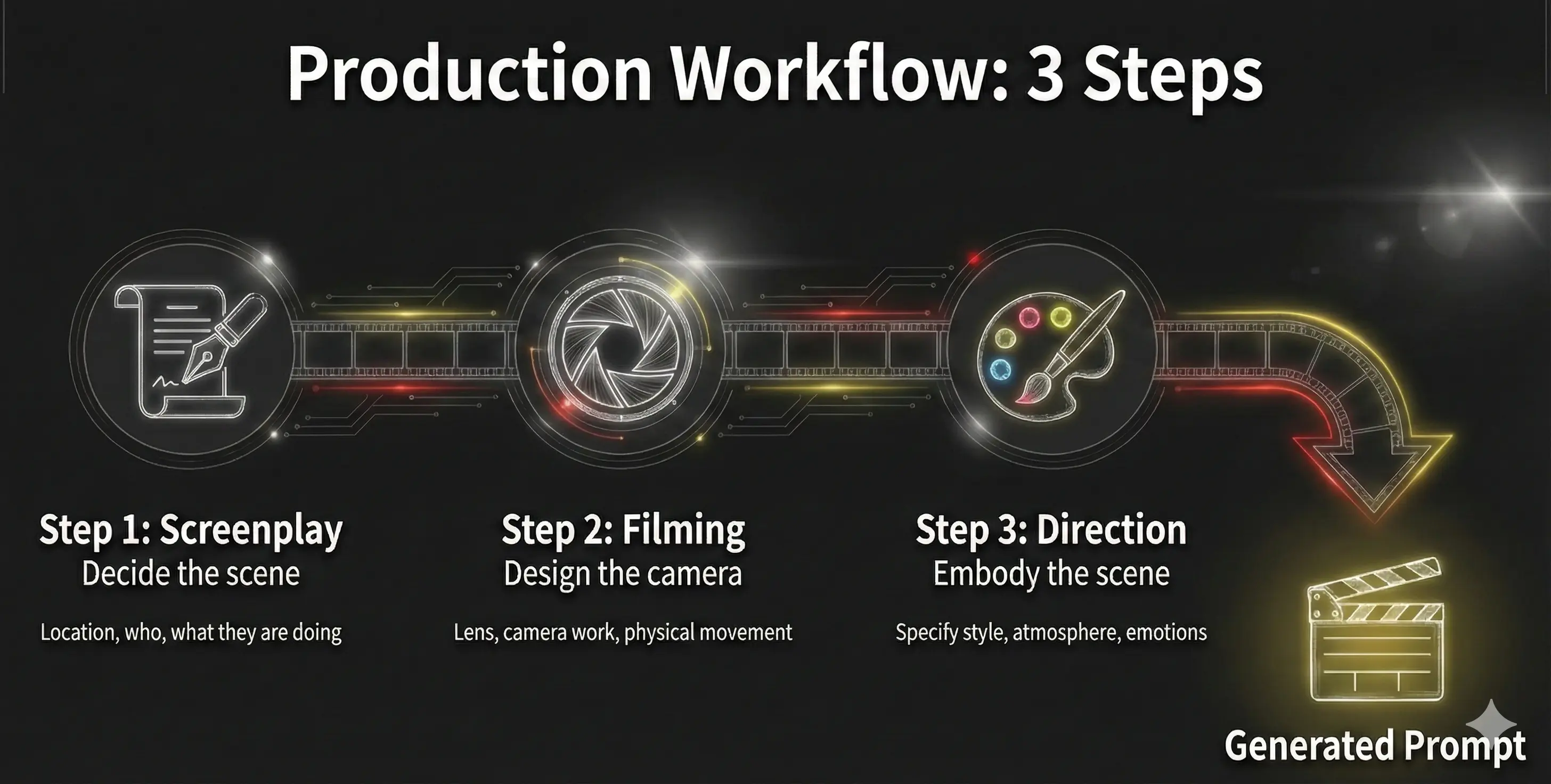
Each of these sticky notes becomes the prompt for each shot on the timeline (scene sentence, lens, camera work, dialogue, conversation, extras, style).
🪄 Design Prompt
Use the tools (V1–V4) to design your prompts.
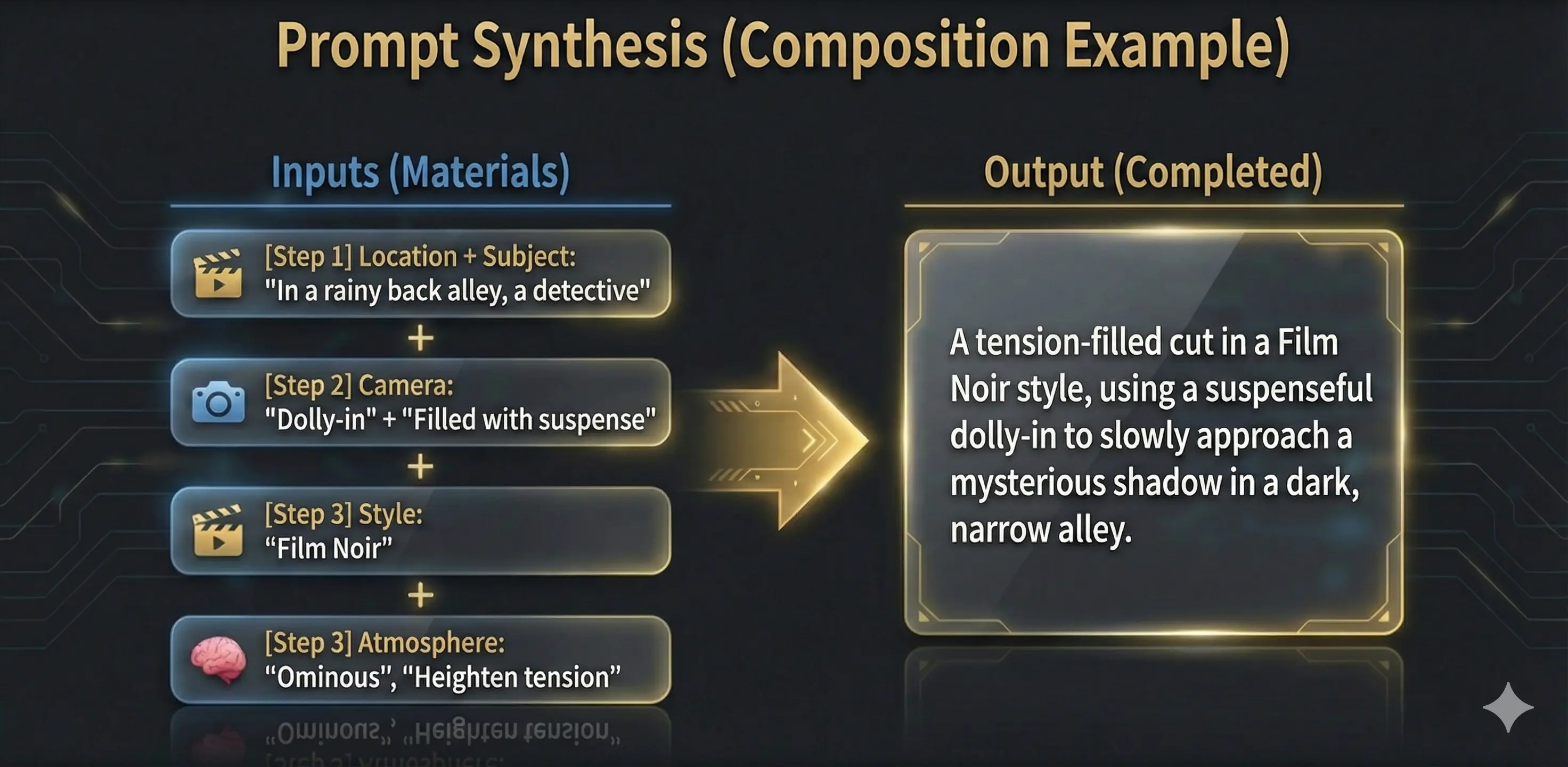
On the placed sticky note, set the scene sentence, lenses, camera work, dialogue, conversations, extras, style, atmosphere, etc.
Easy!:🍕 You can design prompts like choosing pizza toppings.
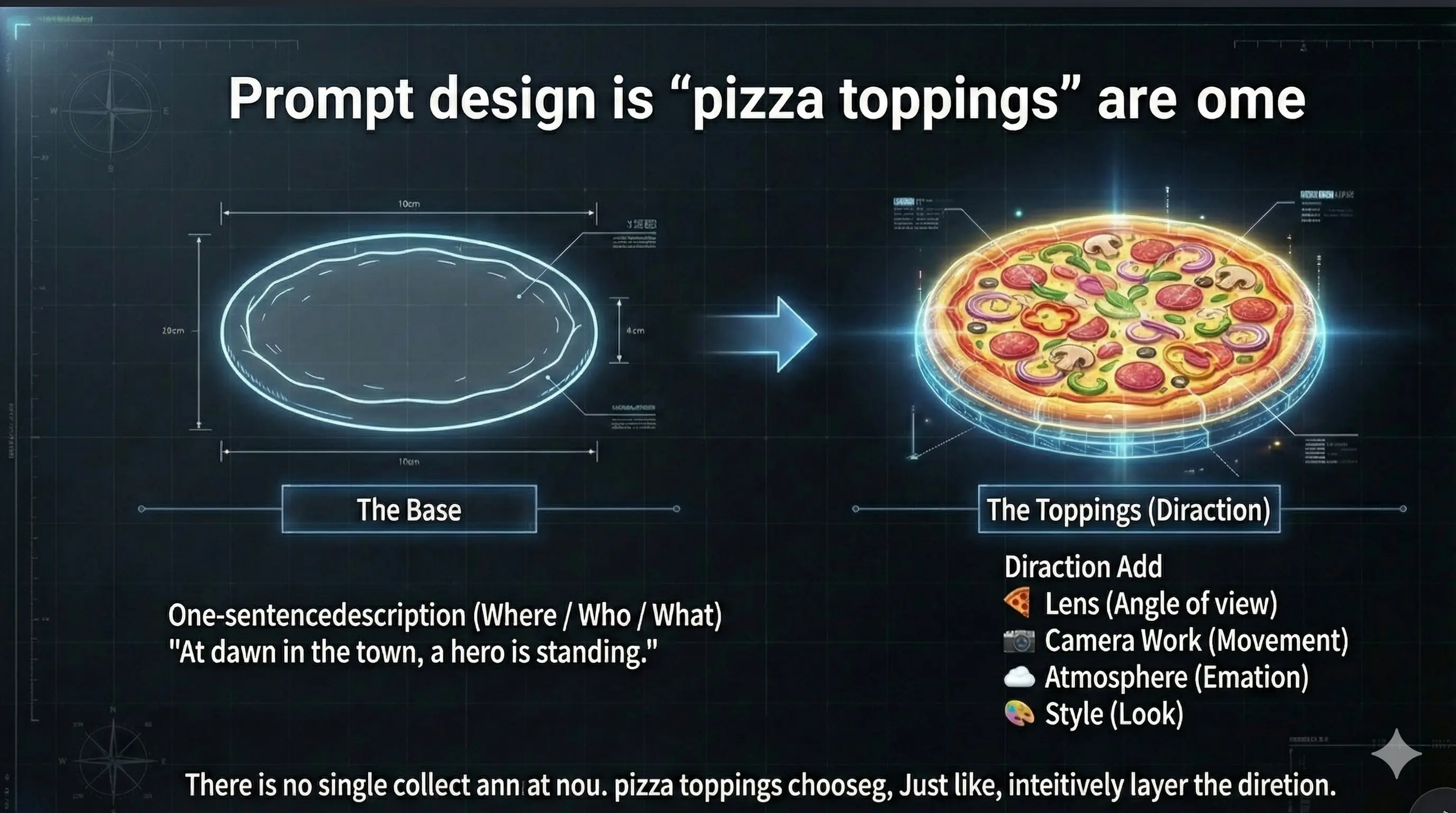
If the topping you want isn't in the list, you can request it. If your suggestion is adopted, we'll invite you to the premium plan with all features—for free.
📌💾 Save Sticky Notes
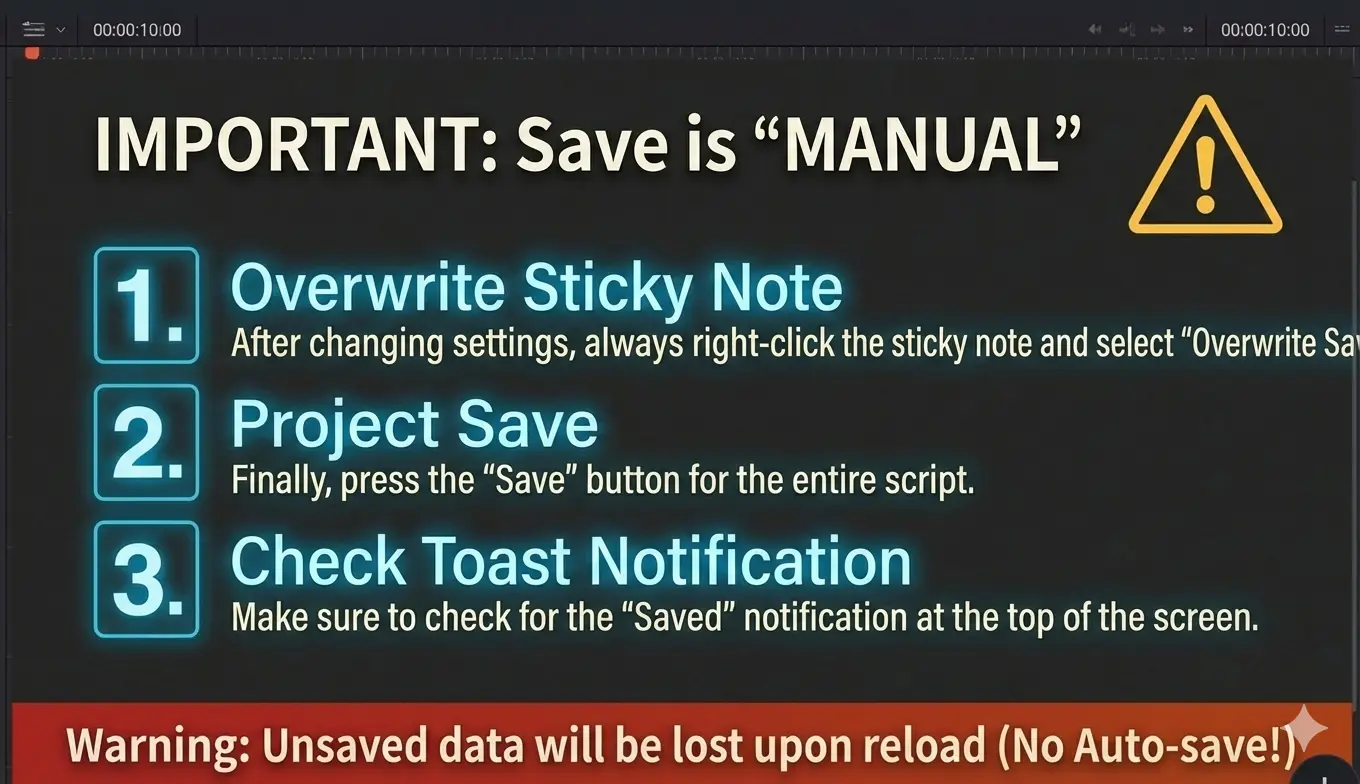
If you save the script without overwriting the sticky notes, the sticky note content will not be saved.
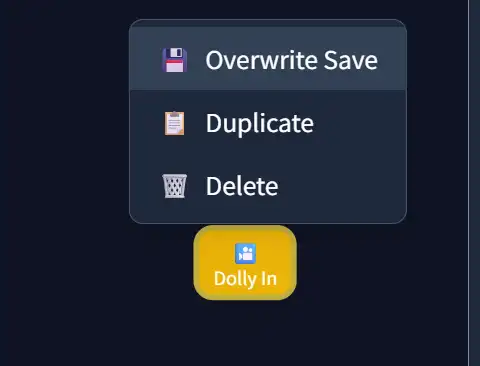
Edits to each cut (sticky) sync to the timeline automatically and are saved together with the project—no "Overwrite Save" required. You can still use "Overwrite Save" from the right-click menu if you prefer.
🛜💾 Save Project to Cloud
Use the "Save" button on the script to save the entire project (created script and prompts). When saving is complete, a toast notification will appear at the top of the screen. If notifications don't appear, press the 🍞 button to test. If it still doesn't appear, reload the page.
Press the "Save" button to save the script (entire project). (Cloud when logged in; cached in your browser when not logged in.)
🍞 No notification after saving? First, test the system
First, press the 🍞 button to test if toast notifications are displayed properly. If notifications don't appear, please reload the page.
⚠️ Warning: Reloading without saving will lose data, so we recommend testing first.
🛠️ Tool-Specific Feature Guide
movie v1 🎦
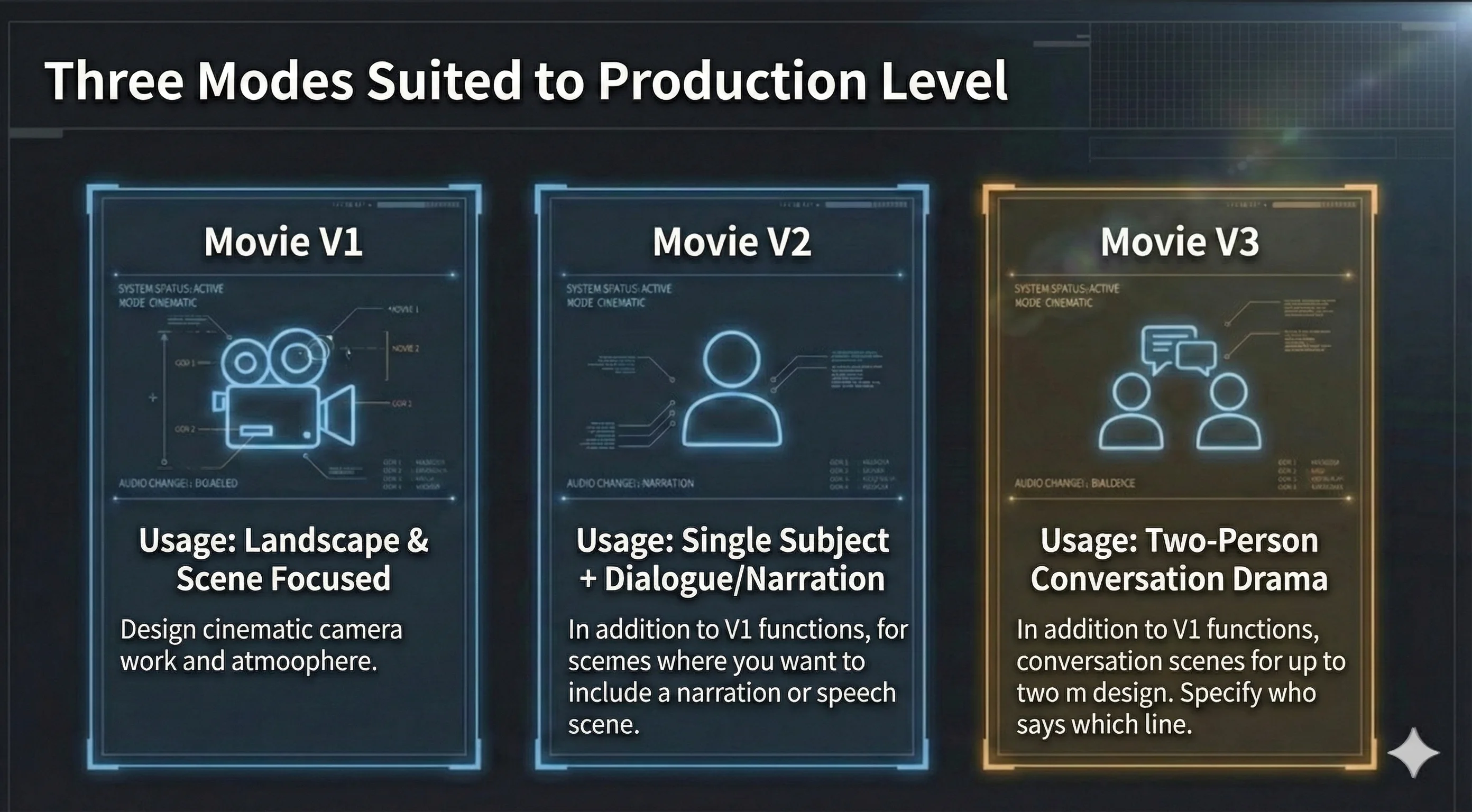
Incorporates cinematic camera work (lens & movement & adjectives) into prompts. Designs video style, cut atmosphere/emotion, background/extras.
movie v2 🙍
In V2, Subject, Dialogue, and optional Narration are separate: on-screen lines vs. voice-over.
- Single-subject cut with dialogue (fill in Subject and Dialogue)
- Single-subject cut without dialogue (leave Dialogue blank)
- Use the Narration field for voice-over (can combine with on-screen dialogue)
+ V1 features
movie v3 👫
For two-person dialogue cuts. Each subject has appearance, on-screen dialogue, and an optional **Action** field (action-only → leave dialogue empty). If both dialogue and action are filled, the built prompt merges them as (verb)line inside the quoted line. Do not duplicate the same beat in both fields. + V1 features
movie v4 🎬
For 3+ people, crowds, and complex blocking. Shotlist-style: up to five subjects (A–E) with appearance, lines, and action, plus shot size, angle, focus, blocking, color palette, and more—alongside V1-style camera, style, and extras.
+ V1-level camera, style, art/extras, narration. Toolbar: right of V3, left of the help (❓) button.
AI cut generation
When generating cuts, the AI reads your script and picks the best V1–V4 version for headcount and blocking in each shot.
V4 Shotlist — Crowds & 3+ people, one cut at a time
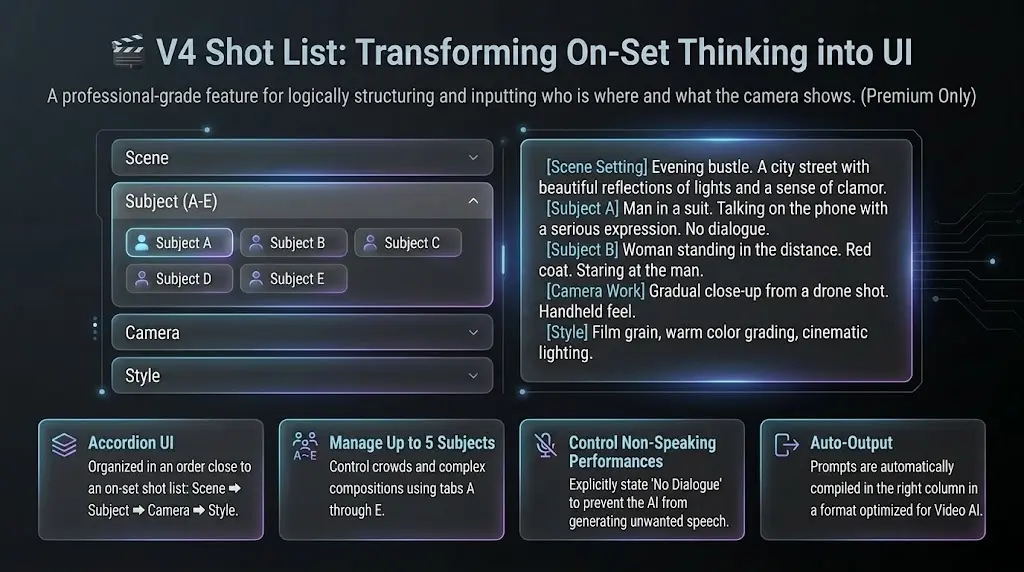
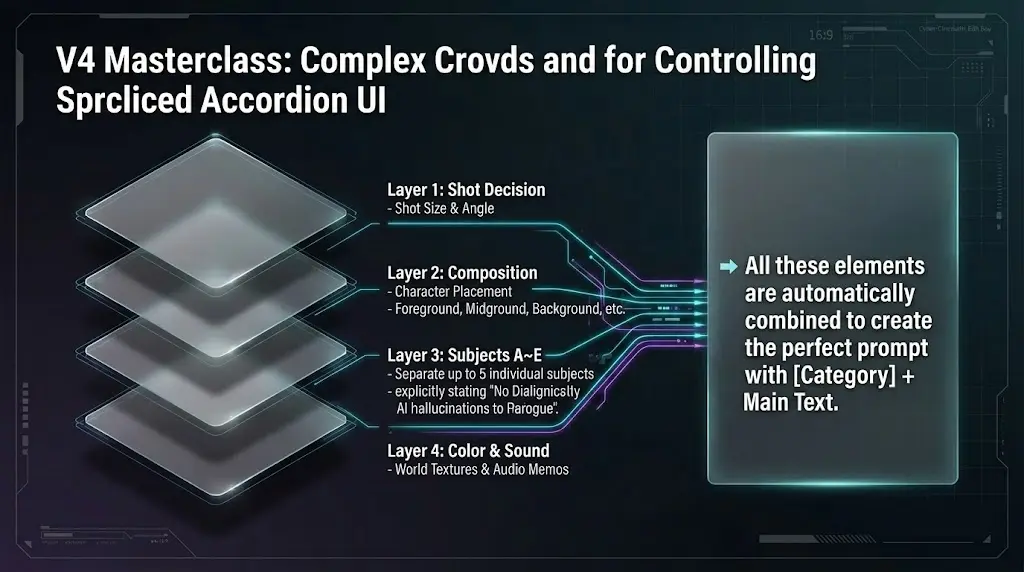
Think **shotlist-style** like on set: enter *who is where* and *what the camera shows* as separate pieces. **More parameters** than V1–V3, so you can use it for **0–2 subject** cuts too—and we recommend it.
Select V4 in the toolbar
In the movie editor toolbar, click **V4** (Shotlist) next to V1–V3. **Premium** feature.
Place a sticky on the timeline
Turn on the timeline and place a sticky where this shot belongs in the script—same as other tools.
Fill accordions and subject tabs
The center column uses **accordions** and tabs: **Scene** → **Subjects (tabs A–E)** → **Camera** (shot size, angle, focus…) → **Style & art**—like a real shotlist. Leave unused subject tabs empty.
Check the built prompt on the right
The right column assembles **【Category】 + text** lines so detailed directions read clearly for video AI.
💡 Good to know
- ▸**No dialogue** is written as “None” / “なし” so silent performances are less likely to get random lines from the generator.
- ▸**Bulk generation** may pick **V4** automatically when the script has three or more people, crowds, or complex blocking.
- ▸Up to **five subjects (A–E)**—great for hallways with three people, parties, or layered blocking.
Confirm that the tool you want is selected, then click anywhere on the timeline to add a sticky note (prompt).
🎬 How to use V1, V2, V3, and V4
📋 Prompt Management Tips
🎦 Sticky Note Placement
Clicking on the timeline creates a prompt with the currently selected tool. You can adjust the position with drag & drop.
📋 Duplication Feature
Right-click (long press) to open the menu and duplicate similar scene settings for efficiency.
💾 Overwrite Save
After changing settings in the center column, you can update by selecting "Overwrite Save" from the right-click menu.
🗑️ Delete & Organize
Unnecessary prompts can be deleted from the right-click menu. Keep the entire project organized and managed.
Save Features
⚠️ Important Notes
Prompts are not auto-saved. Please save manually.
Remember to save before leaving the page.
If you are not logged in, your project is stored only in the browser cache (temporary storage). It may be lost if you clear the browser or change devices, so please treat this as trial use only.
Deleted prompts cannot be restored.
📝 Save Steps (Sticky Notes and Script)
Edits to each cut (sticky) sync to the timeline automatically and are saved together with the project—no "Overwrite Save" required. You can still use "Overwrite Save" from the right-click menu if you prefer.
Press the "Save" button to save the script (entire project). (Cloud when logged in; cached in your browser when not logged in.)
💡 Useful Features
Prompt Duplication
Duplicate existing prompts for efficient work.
Drag & Drop
Easily change the order of prompts.
Summary
Directors Console is a comprehensive tool that streamlines film production workflows and supports AI-powered video creation. It covers everything from basic workflows to advanced camera work and prompt management that filmmakers need.
Key Features
- • Three tool versions (v1, v2, v3)
- • Comprehensive camera work settings
- • Intuitive prompt management
- • Multi-language support (Japanese/English)
- • Responsive design
Target Users
- • Film directors and video creators
- • AI video generation beginners
- • Creative professionals
- • Students learning film production
🚀 Start Film Production Now!
Now that you've read and understood the documentation, try experiencing film production with Directors Console.