Style & mood
🎨 Step 3: Make the Scene Concrete (Style & Atmosphere)
AI style & atmosphere
When generating cuts, the AI reads your script and scene to pick Styles and Atmospheres that match the look and emotional tone.
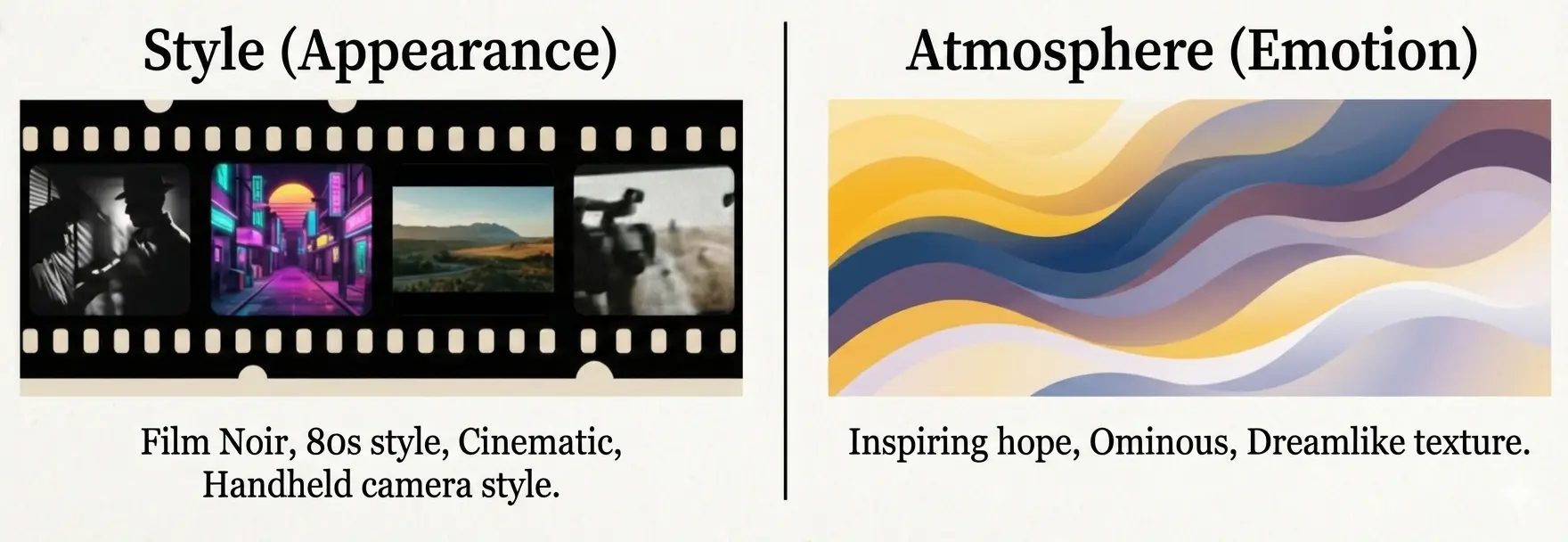
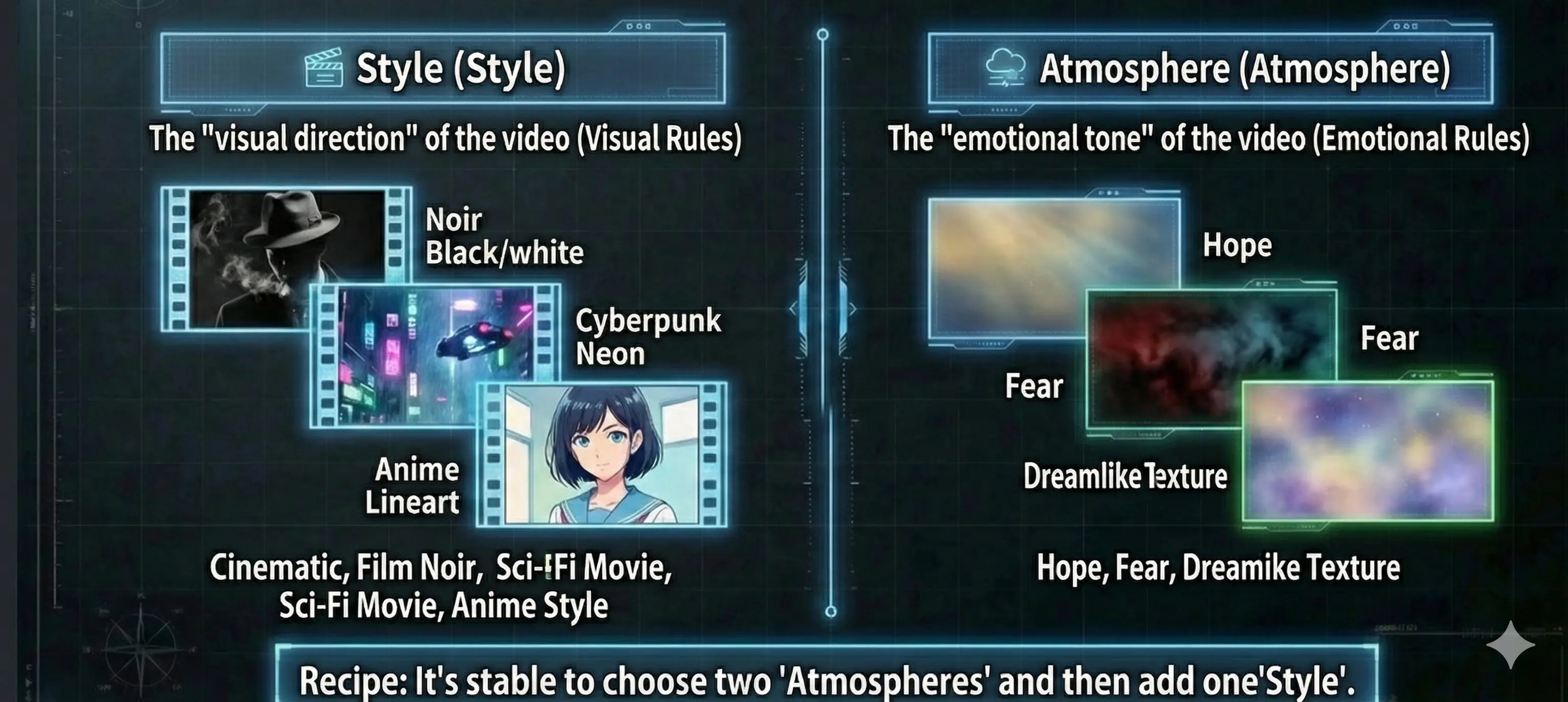
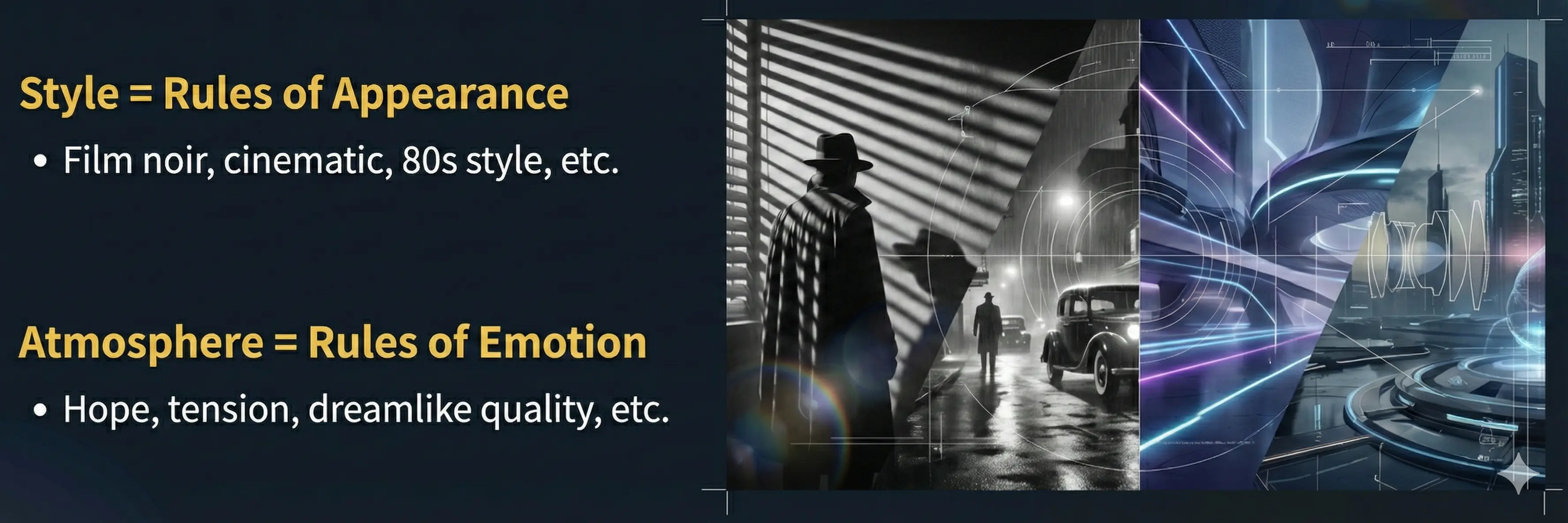
🍕 Step 3 is where you pick “look” and “emotion” toppings. Don’t overthink—just choose what you like. If unsure, pick two Atmosphere options first, then add one Style. To suggest more style or atmosphere options, use the Word Request Campaign.
In Step 3, you choose the visual direction (Style) and the emotional tone (Atmosphere). You can select multiple options for both, and your choices are automatically reflected in the generated prompt.
🎬 Style (Multi-select)
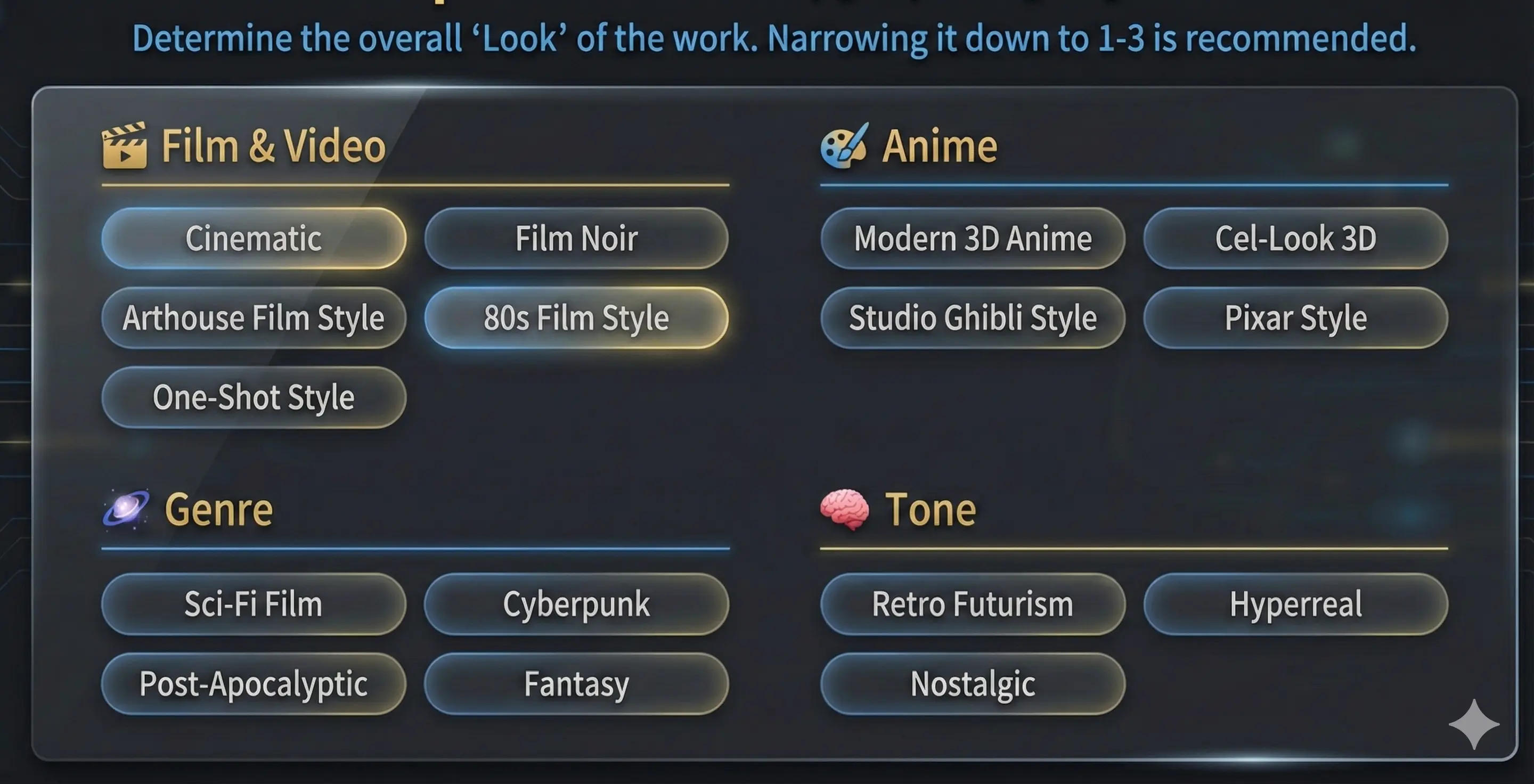
Press “Select…” to open the style list (the modal shows “Style (multi-select)” at the top). If you want a consistent look, selecting 1–3 styles is usually best.
Examples available in the app (partial)
🎬 Film & Video Style
- Cinematic
- Film Noir
- Arthouse Film Style.........
🎨 Anime & Visual Style
- Modern 3D Anime
- Cel-Shaded 3D
- Japanese Anime Style.........
🌌 Genre
- Sci-Fi Film
- Cyberpunk
- Post-Apocalyptic.........
🧠 Tone & Mood
- Dark and tense
- Lyrical and poetic
- Nostalgic.........
🌍 Cultural & Regional Style
- Middle Eastern Epic
- Eastern Fantasy
- Afrofuturism.........
⚙️ Frame Control
- Maintain original frame integrity
The above is a sample. In the app you can choose from many more styles.
How it appears in the prompt: “Cinematic, Film Noir style. …”
🌫️ Atmosphere (Multi-select)
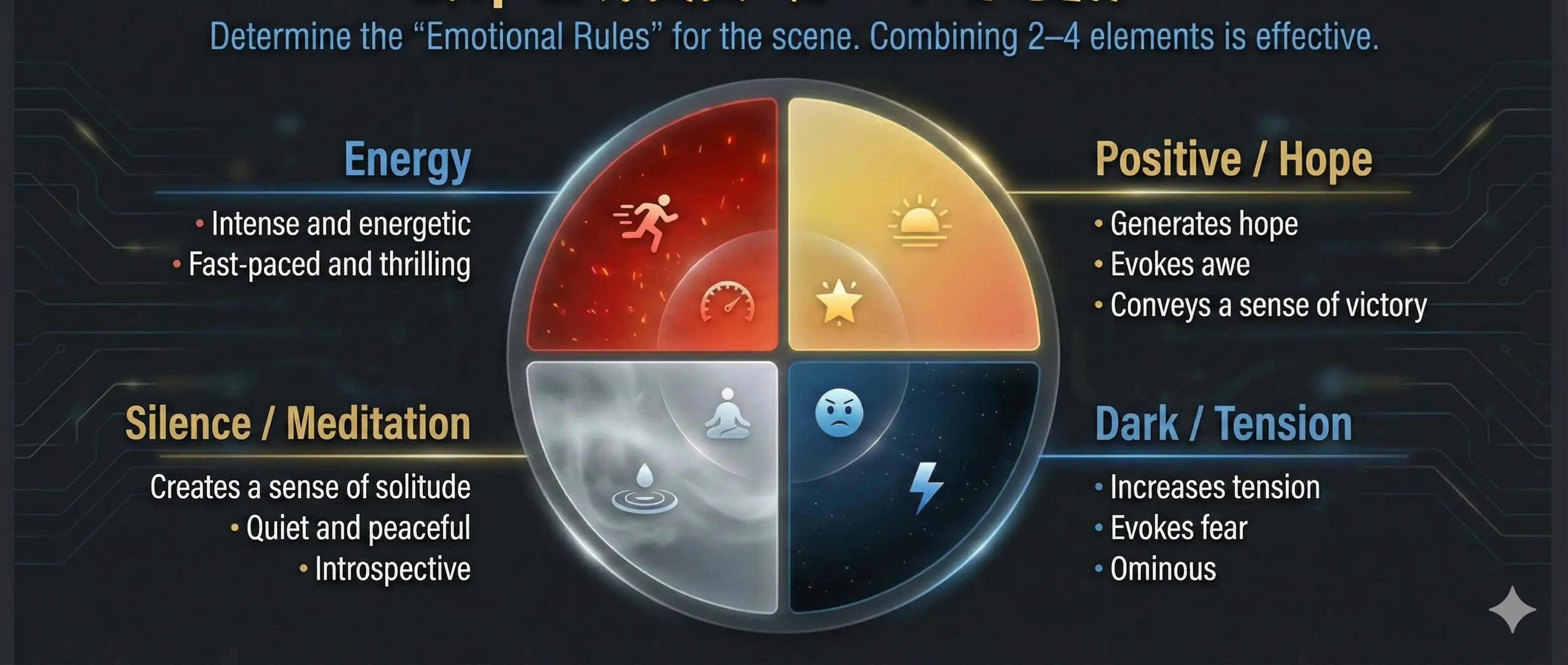
Press “Select…” to open the atmosphere list (the modal shows “Atmosphere (multi-select)” at the top). Atmosphere words describe emotion—combining 2–4 usually communicates intent well.
Examples available in the app (partial)
🌤️ Positive / Hope / Emotion
- Create a sense of hope
- Evoke wonder
- Uplifting and inspiring.........
🌑 Dark / Tension / Fear
- Build tension
- Evoke fear
- Dark and ominous.........
🧘 Silence / Meditation / Afterglow
- Create a meditative mood
- Convey loneliness
- Serene and tranquil.........
🌀 Wonder / Dream / Fantasy / Abstract
- Dreamlike quality
- Surreal and poetic
- Unreal and mystical.........
💥 Energy / Vitality / Speed
- Intense and energetic
- Fast-paced and thrilling
- Dynamic and powerful.........
💔 Sadness / Loss / Melancholy
- Evoke sadness
- Melancholy and introspective
- Sense of loss.........
✨ Change / Evolution / Journey
- Sense of transformation
- Journey of discovery
- Unfolding mystery.........
The above is a sample. In the app you can choose from many more atmospheres.
How it appears in the prompt: “… Create an atmosphere of a sense of hope and a triumphant feeling.”
Tip: Style sets the visual rules; Atmosphere sets the emotional rules. If you’re unsure, pick two Atmosphere options first, then add a Style.
AI extras & background
When generating cuts, the AI reads your script and composes the extras line—location, crowds, and background motion—for the prompt.
🏙️ Background (Extras)
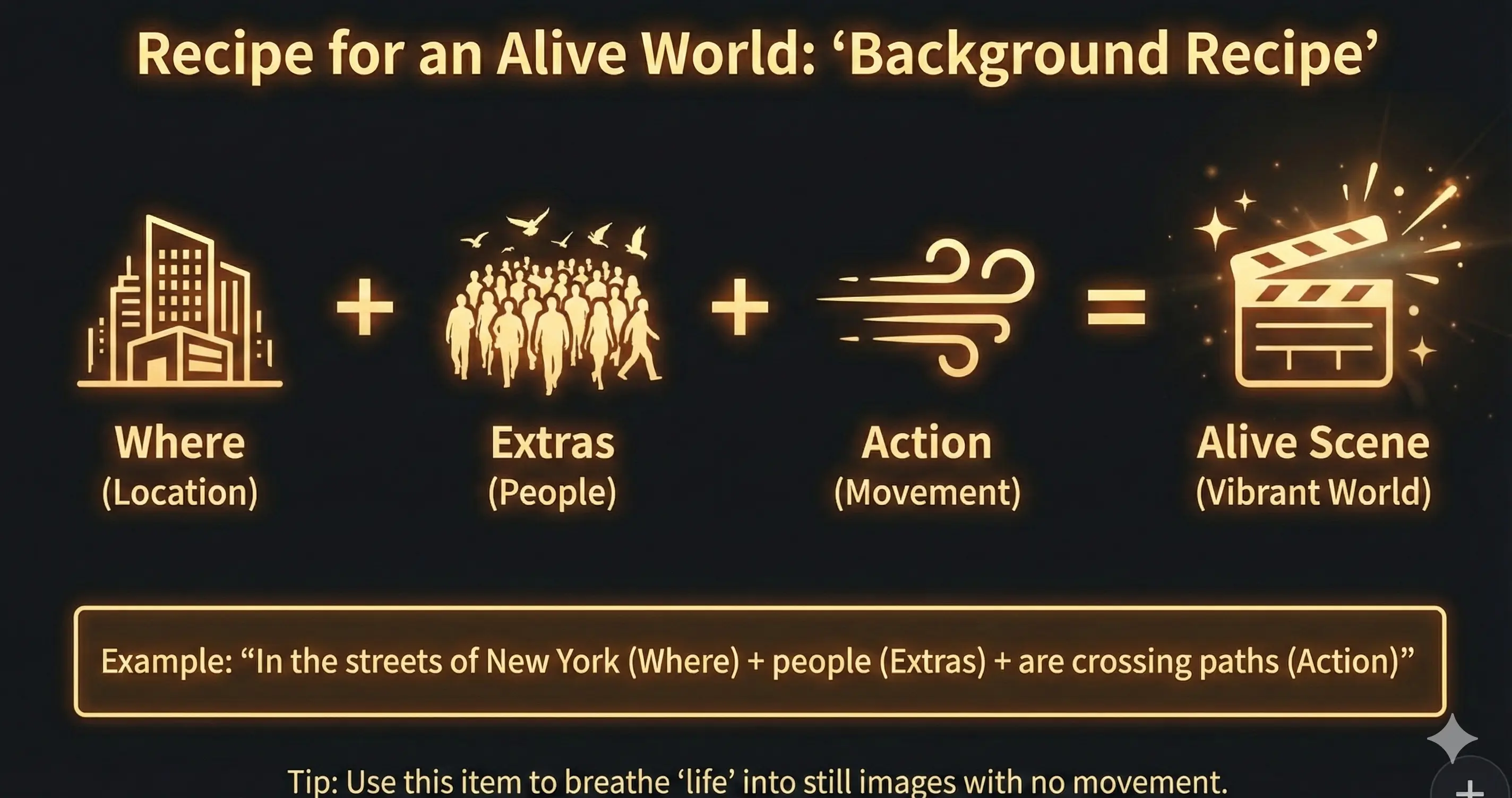
In the "Background (Extras)" field, you can describe the location, the look of the background, and any elements you want in the frame. You can enter just a place, just an action, or combine both in one sentence.
Examples
- - A New York street
- - Birds flying
- - People passing by
- - People passing by on a New York street (background and extras combined)
What you enter is included in the prompt so the scene is described more concretely.
🚀 Start Film Production Now!
Now that you've read and understood the documentation, try experiencing film production with Directors Console.